
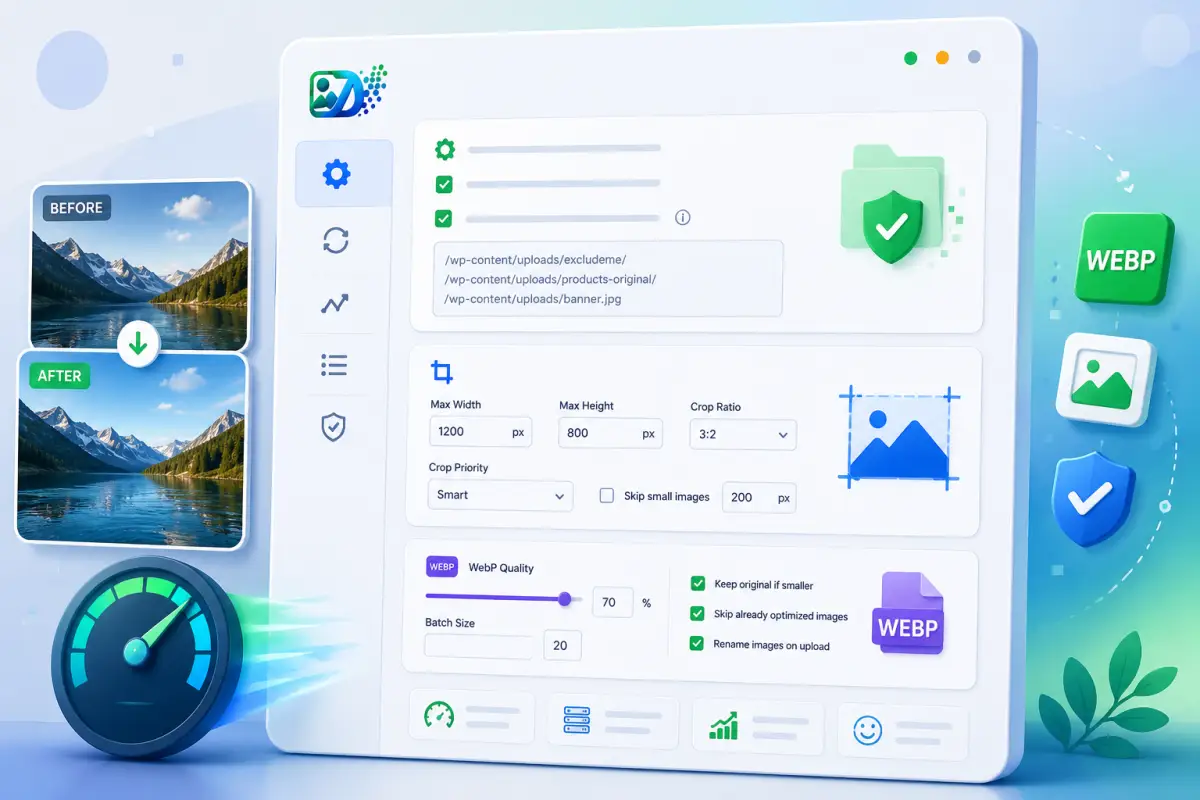
After installing and activating your ImgDexter Pro license, the next step is configuring the settings that control how the plugin works across your website. ImgDexter Pro provides a flexible set of options that allow you to control image processing, WebP conversion quality, dimensions, cropping behavior, and exclusions, helping you achieve the best balance between image quality and website performance.
In this guide, we will walk through all ImgDexter Pro settings, explain what each option does, and share recommended configurations for most WordPress websites.
Note: The default settings are balanced and suitable for most websites. However, it is always recommended to review them and make sure they match your site’s specific needs.
Browse the Table of Contents:
Processing & Exclusions Settings
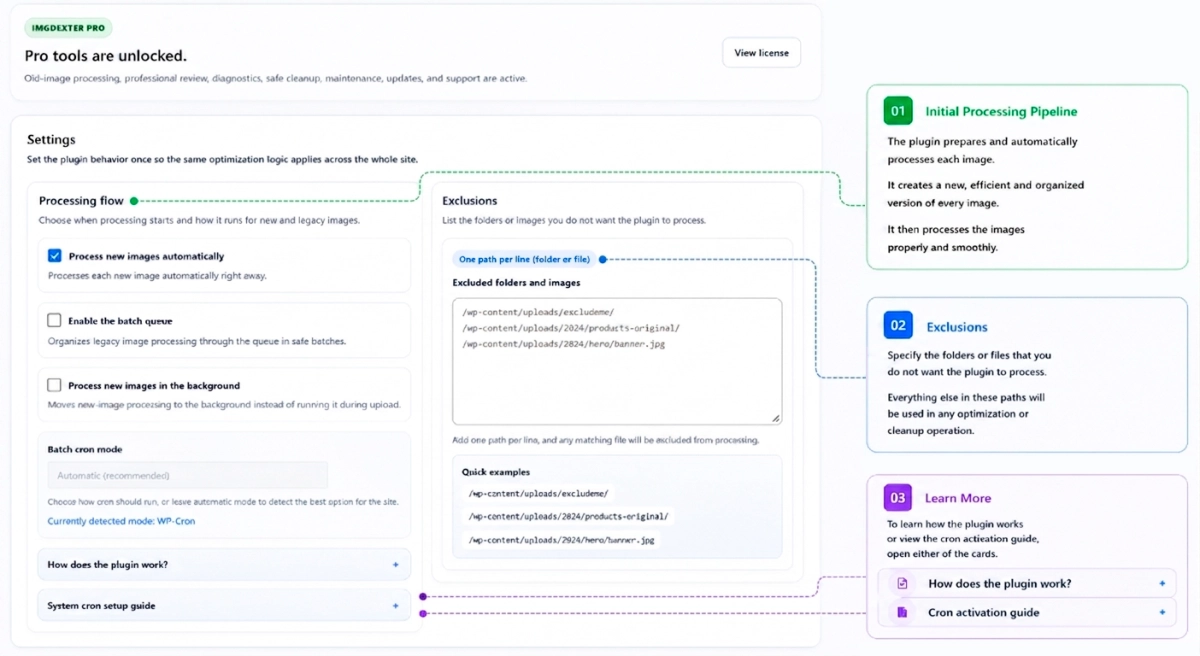
This section serves as the starting point of the plugin’s workflow, defining how new and existing images are processed and how exclusions are handled.
Automatically Process New Images
Enabling this option allows ImgDexter Pro to automatically process every new image uploaded or imported into the Media Library.
The processing workflow may include:
- Generating WebP versions when needed.
- Applying image dimension rules.
- Applying crop settings when enabled.
- Using the configured compression quality settings.
For most websites, keeping this option enabled is recommended to ensure that newly added images are optimized automatically.
Enable Batch Processing for Existing Images
This feature is designed to process images that already exist in the Media Library in a structured and safe manner.
Existing images are only processed after being added to the processing queue while this option is enabled.
Instead of processing all images at once, the plugin divides the workload into smaller batches, reducing server load and helping maintain website stability throughout the process.
This feature is especially useful for websites with large media libraries.
Process New Images in the Background
When enabled, newly uploaded images are processed in the background a few seconds after upload instead of being processed during the upload request itself.
This helps:
- Reduce image upload waiting time.
- Improve the user experience.
- Lower peak server load.
This option is recommended for websites that frequently upload large numbers of images.
Important: This option only works when Automatically Process New Images is also enabled.
How Do These Options Work Together?
ImgDexter Pro is a complete image processing system, not just a simple compression tool.
It automatically processes new uploads, organizes existing image processing through a safe queue system, and combines WebP conversion, resizing, cropping, and diagnostics into a single workflow.
When Should I Use Each Option?
- Enable Automatically Process New Images if you want optimization to begin immediately after upload.
- Enable Background Processing if your website receives many image uploads and you want a lighter upload experience.
- Enable the Batch Processing Queue when processing older images or large media libraries gradually and safely.
Cron Execution Mode
Batch processing and scheduled tasks rely on a Cron system, whether through the standard WordPress Cron or a server-level System Cron.
ImgDexter Pro automatically detects the most appropriate mode based on your hosting environment and website configuration.
System Cron Setup Guidance
If you choose to use System Cron, you can configure it through your hosting control panel or server.
- Add the following line to your
wp-config.phpfile:
define('DISABLE_WP_CRON', true);
- Create a Cron job that runs every 5 minutes using the command that best fits your server environment.
Quick Help Cards
At the bottom of this section, you will find several help cards that explain how processing works and how Cron execution is managed.
If you need additional information about processing workflows or System Cron configuration, these cards provide useful guidance.
Exclusions
This section allows you to specify files or directories that should be ignored by the plugin.
You can exclude:
- Entire directories.
- Individual files.
- Multiple paths.
Each path should be entered on a separate line.
Example:
/wp-content/uploads/excludeme/
/wp-content/uploads/products-original/
/wp-content/uploads/hero/banner.jpg
Any file or directory listed here will be excluded from optimization, processing, and cleanup operations.
Image Dimensions & Cropping
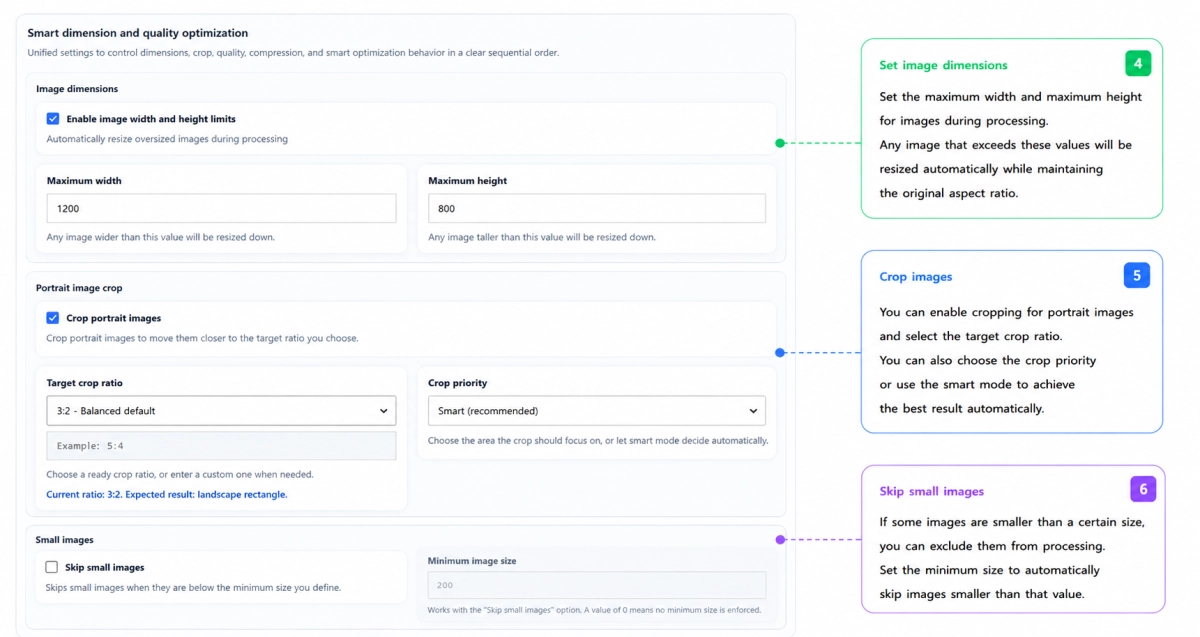
This section provides advanced controls for resizing oversized images and cropping vertical images in a way that improves both performance and visual consistency.
Enable Image Dimension Limits
When enabled, ImgDexter Pro monitors image dimensions during processing.
If an image exceeds the configured limits, it will be resized automatically while preserving its original aspect ratio.
Maximum Image Width
Defines the maximum allowed image width during processing.
For example:
1200 pixels
Any image wider than this value will be resized automatically.
Maximum Image Height
Defines the maximum allowed image height during processing.
For example:
800 pixels
Any image taller than this value will be resized automatically.
Enable Vertical Image Cropping
Some portrait-oriented images may not fit well within certain layouts.
When enabled, this feature allows ImgDexter Pro to crop tall images into more balanced aspect ratios.
Target Crop Ratio
You can select a predefined ratio or enter a custom ratio.
Common examples include:
- 3:2
- 4:3
- 5:4
The plugin also displays a visual preview to help you choose the most suitable ratio.
Crop Priority
This setting determines which part of the image should receive cropping priority.
Several modes are available, but Smart Mode is recommended for most websites. It attempts to identify the most important area of the image automatically to achieve the best possible crop without manual intervention.
You can also manually choose the crop focus area when needed.
Skip Small Images
If you do not want very small images to be processed, you can enable this option.
Then define the minimum image size.
Example:
200 pixels
Any image smaller than this threshold will be skipped automatically.
This helps reduce unnecessary processing operations and improves efficiency.
WebP Quality & Advanced Optimization Options
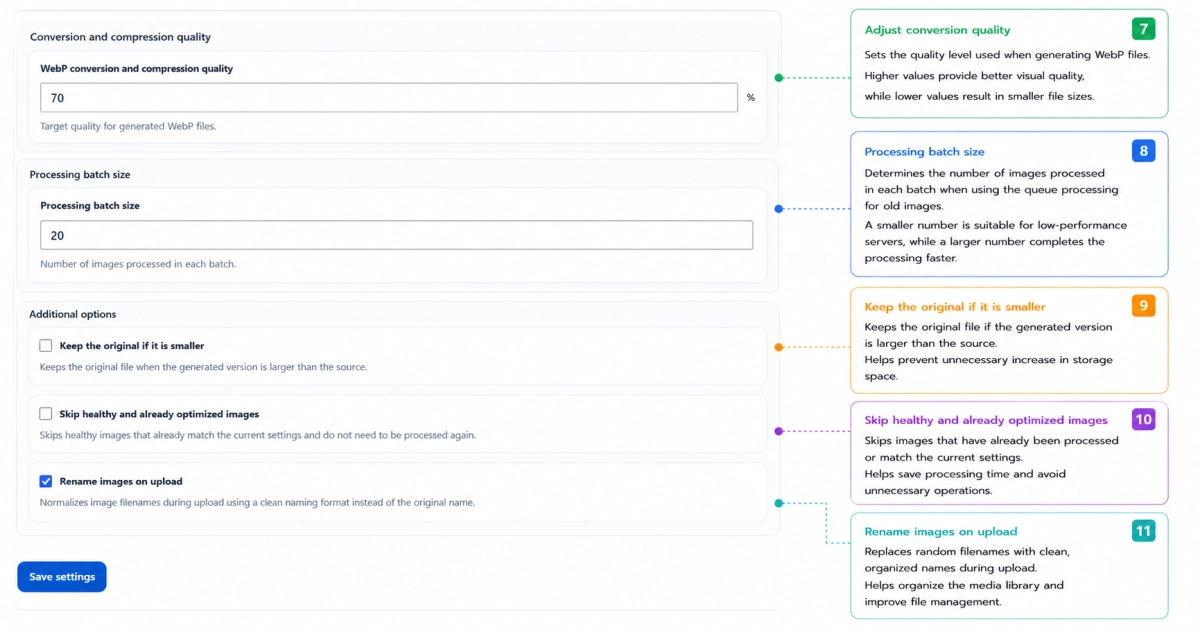
This section controls WebP quality settings, processing behavior, and several advanced optimization features.
WebP Quality
This setting determines the quality level of generated WebP images.
Higher values provide:
- Better image quality.
- Larger file sizes.
Lower values provide:
- Smaller file sizes.
- Stronger compression.
The default value is:
70%
This setting offers a balanced compromise between image quality and file size for most websites.
ImgDexter Pro uses an intelligent processing system designed to preserve the best possible visual quality while optimizing image size. The percentage selected here represents the target quality level.
Batch Size
Defines how many images are processed per batch when working with existing images.
The default value is:
20 images per batch
This setting works well for most shared and mid-range hosting environments.
If server resources are limited, you can reduce this number.
For powerful servers, increasing the value may speed up processing.
Keep Original If Smaller
In rare cases, the optimized version may end up larger than the original file.
When this option is enabled, ImgDexter Pro keeps the original file instead of replacing it with a larger optimized version.
Skip Already Healthy or Optimized Images
When enabled, the plugin automatically skips images that have already been optimized or already comply with the current settings.
Benefits include:
- Faster processing.
- Reduced server usage.
- Avoiding unnecessary reprocessing.
Rename Images on Upload
This feature helps keep Media Library filenames organized.
Instead of preserving original filenames that may be long, duplicated, or contain problematic characters, ImgDexter Pro generates clean, organized filenames that follow best practices.
This improves media organization and reduces compatibility issues across different systems.
Recommended Settings for Most Websites
If you do not have specific requirements, consider starting with the following configuration:
- Automatically Process New Images: Enabled
- Maximum Width: 1200
- Maximum Height: 800
- Crop Ratio: 3:2
- Crop Priority: Smart
- WebP Quality: 70%
- Batch Size: 20
- Skip Already Optimized Images: Enabled
- Rename Images on Upload: Enabled
Batch Processing should be enabled when processing existing images or large media libraries.
Conclusion
ImgDexter Pro provides a comprehensive set of image optimization controls that give you flexibility without sacrificing performance. By configuring these settings correctly, you can improve website speed, reduce storage usage, maintain image quality, and minimize manual media management.
Once configured, the plugin will automatically follow your rules and preferences, making image optimization more efficient, reliable, and scalable over time.