
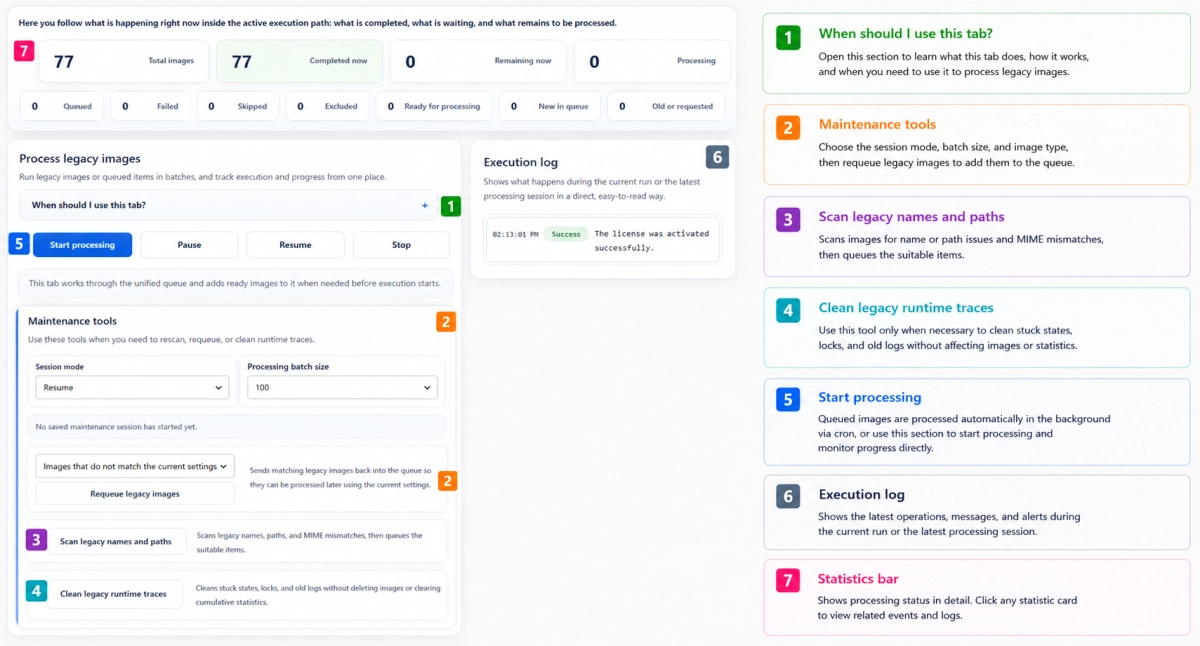
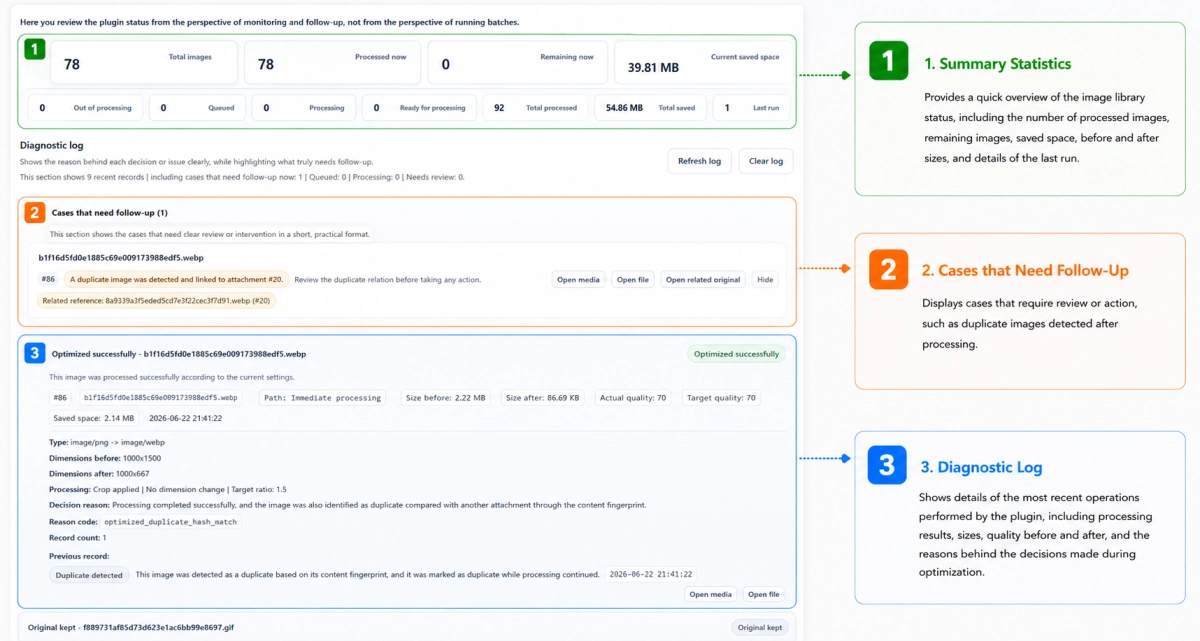
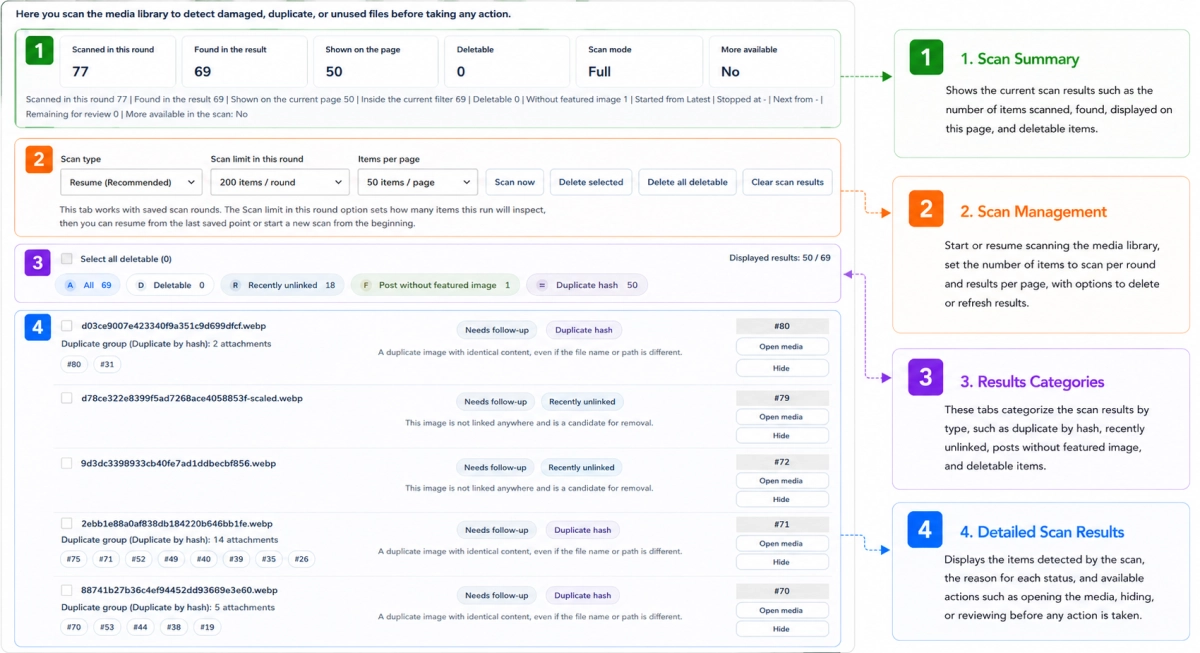
After obtaining ImgDexter Pro, you need to install the plugin on your WordPress website and activate your license key to unlock all professional features, including updates, technical support, advanced legacy-image processing, diagnostics, and review tools.
This guide walks you through the installation and activation process step by step.
Browse the Table of Contents:
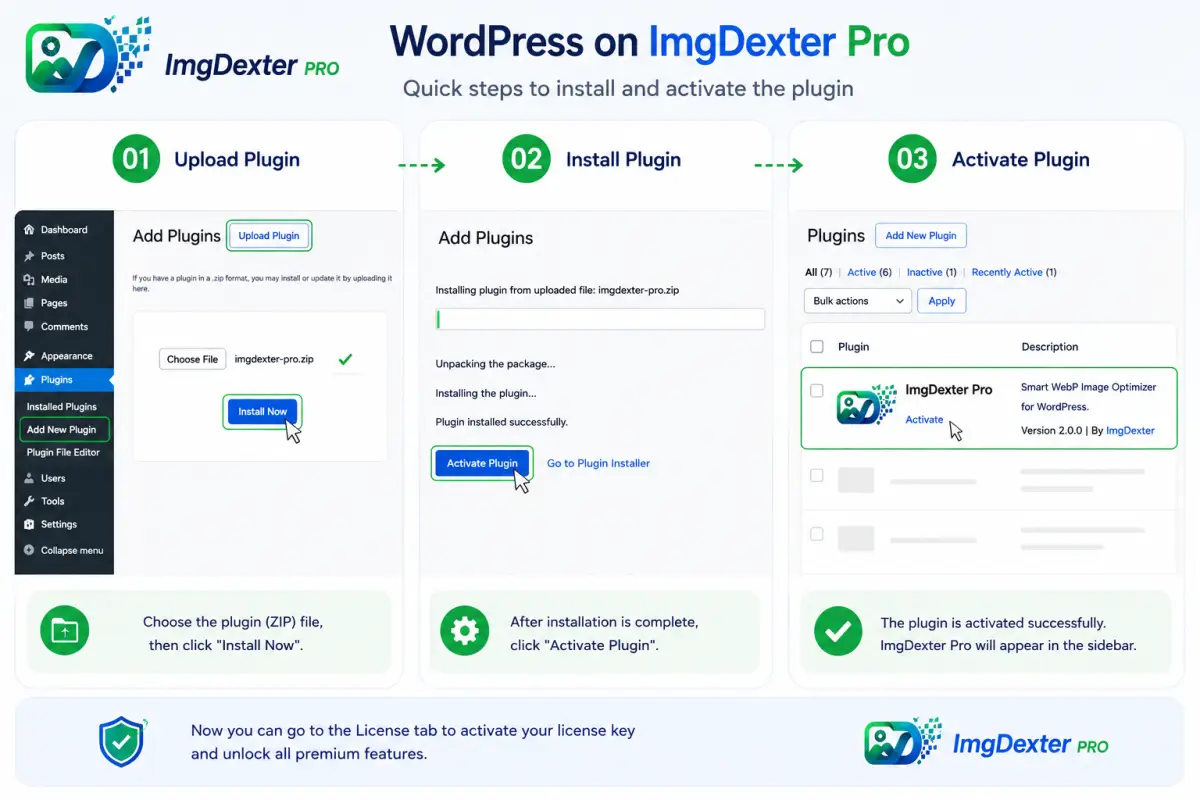
Step 1: Install the Plugin
After downloading the ImgDexter Pro ZIP package, go to your WordPress dashboard and navigate to:
Plugins → Add New Plugin → Upload Plugin
Select the ZIP file and click:
Install Now
Wait until WordPress completes the installation.
Step 2: Activate the Plugin
Once the installation is finished, click:
Activate Plugin
After activation, the ImgDexter Pro menu will appear in your WordPress dashboard.
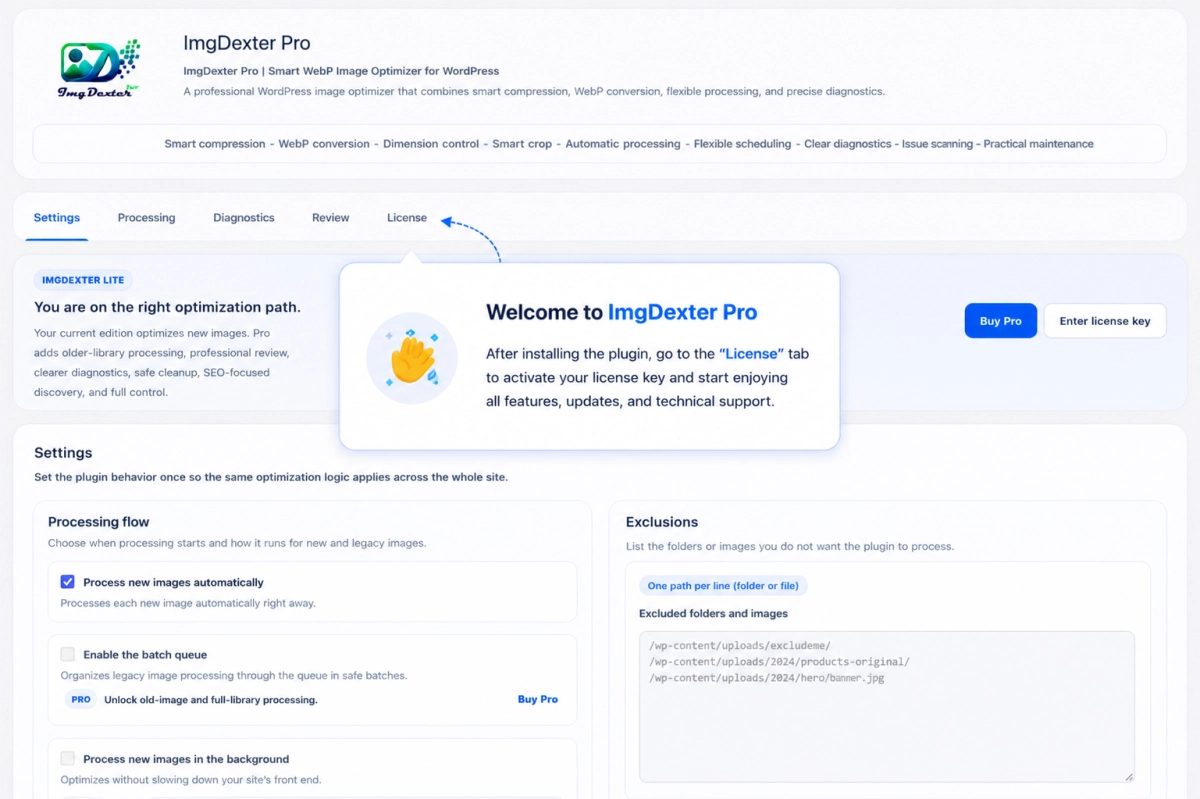
Step 3: Open the License Tab
From the ImgDexter Pro interface, open the:
License
tab.
This section contains all license-related controls and activation tools.
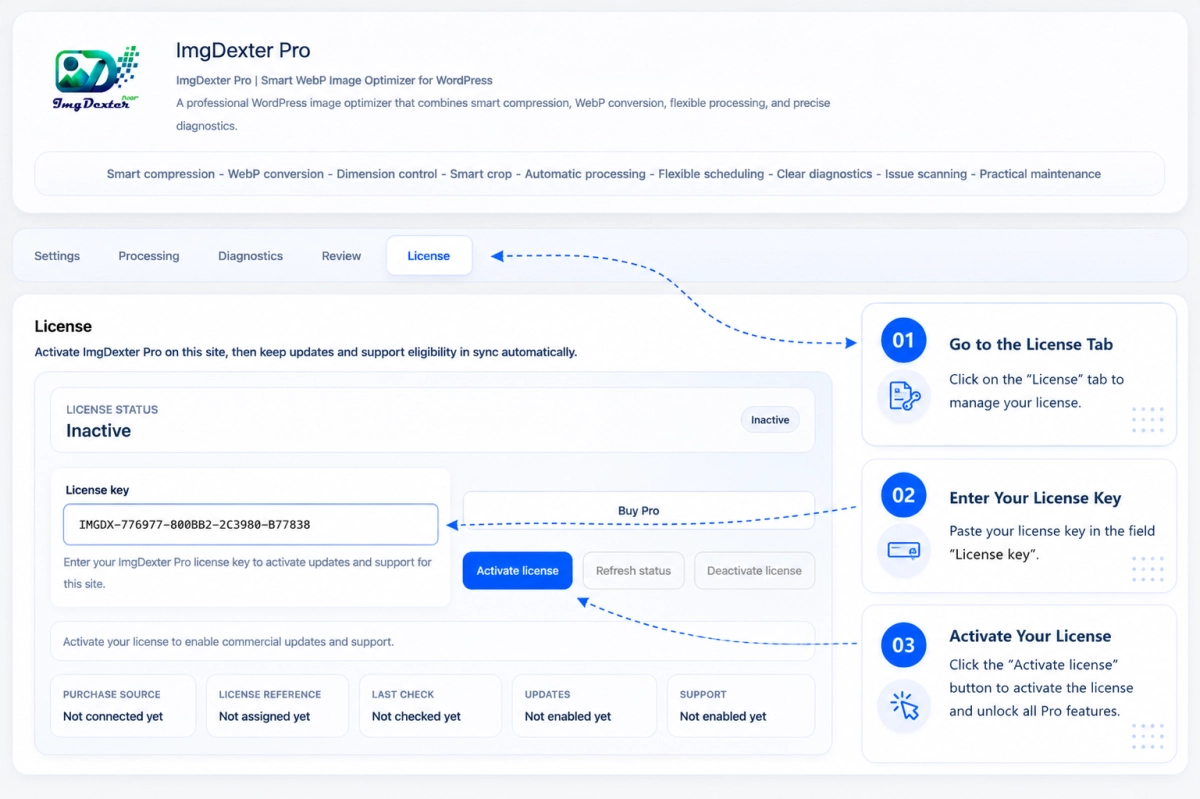
If the plugin has not been activated yet, the license status will appear as:
Inactive
Step 4: Enter Your License Key
Copy the license key you received after purchasing ImgDexter Pro.
In the License tab, locate the:
License Key
field and paste your key into it.
Then click:
Activate License
The plugin will verify the license and connect it to the current website.
Step 5: Verify Activation
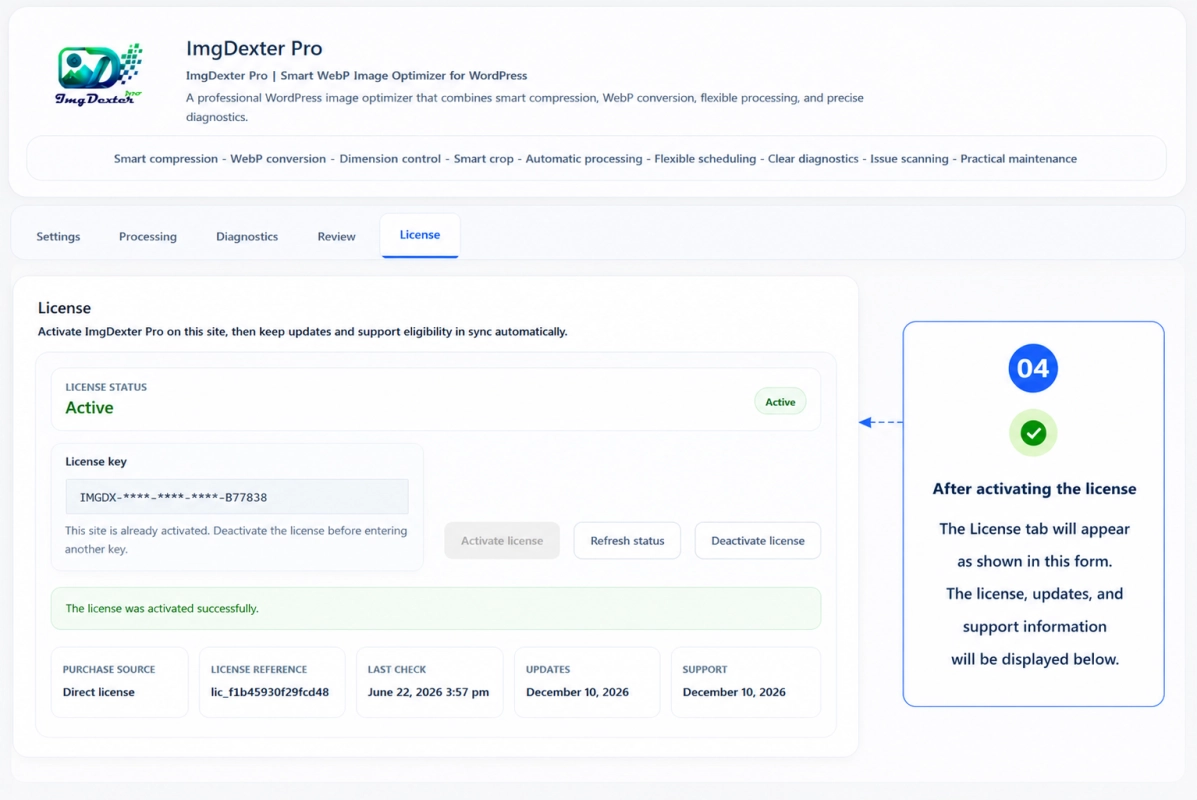
When activation is completed successfully, the license status will change to:
Active
You will also see additional license information, including:
- License status.
- License reference.
- Last verification date.
- Updates status.
- Support status.
This confirms that ImgDexter Pro is fully activated and ready to use.
What’s Next?
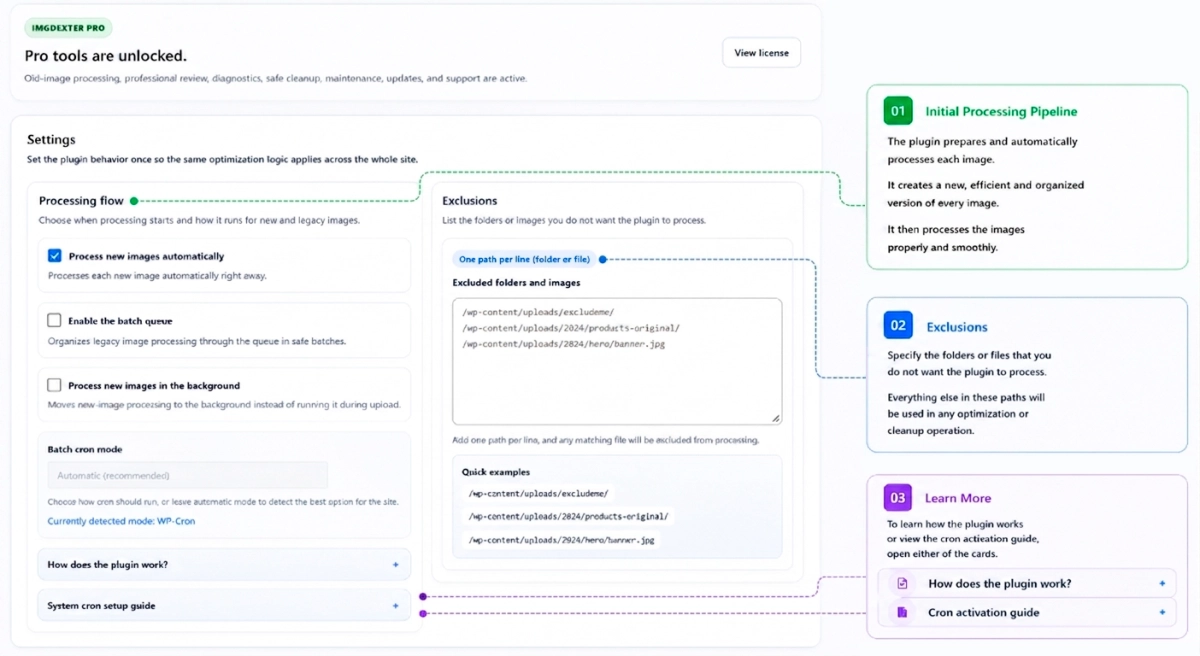
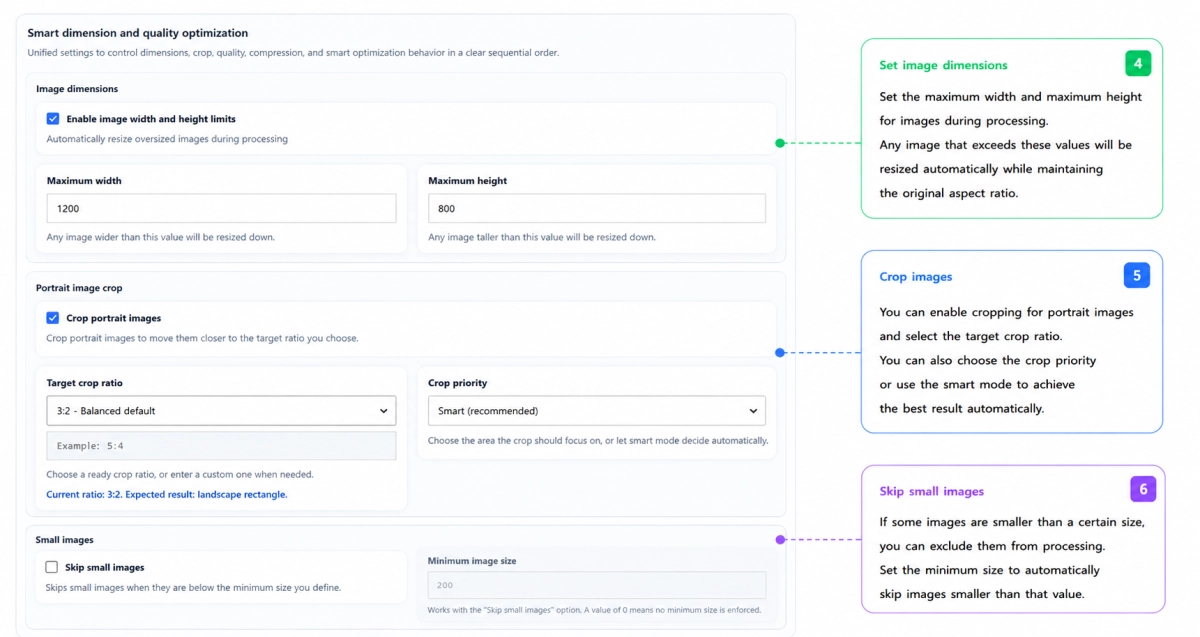
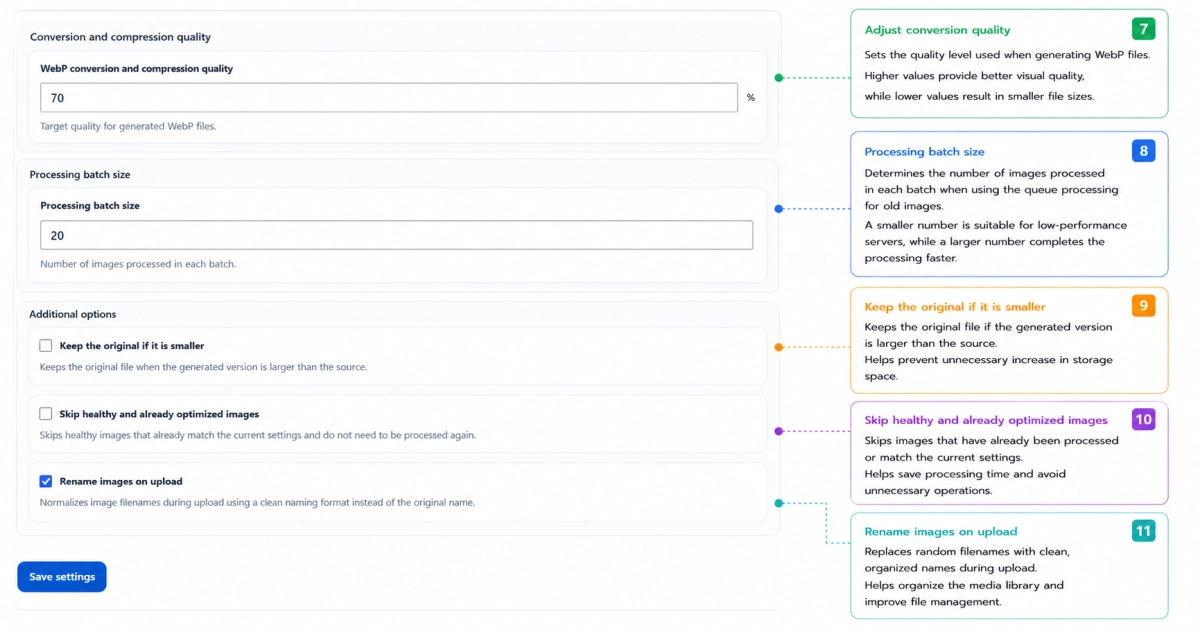
After activating your license, you can proceed to the Settings tab to configure image processing behavior, optimization preferences, image dimensions, quality settings, exclusions, and other advanced features.
In the next guide, we will explain the ImgDexter Pro settings in detail and cover the recommended configuration for most websites.
Summary
Installing and activating ImgDexter Pro only takes a few minutes. Once the plugin is installed, activated, and connected to your license key, all professional optimization, review, maintenance, and diagnostic features become available on your website.