
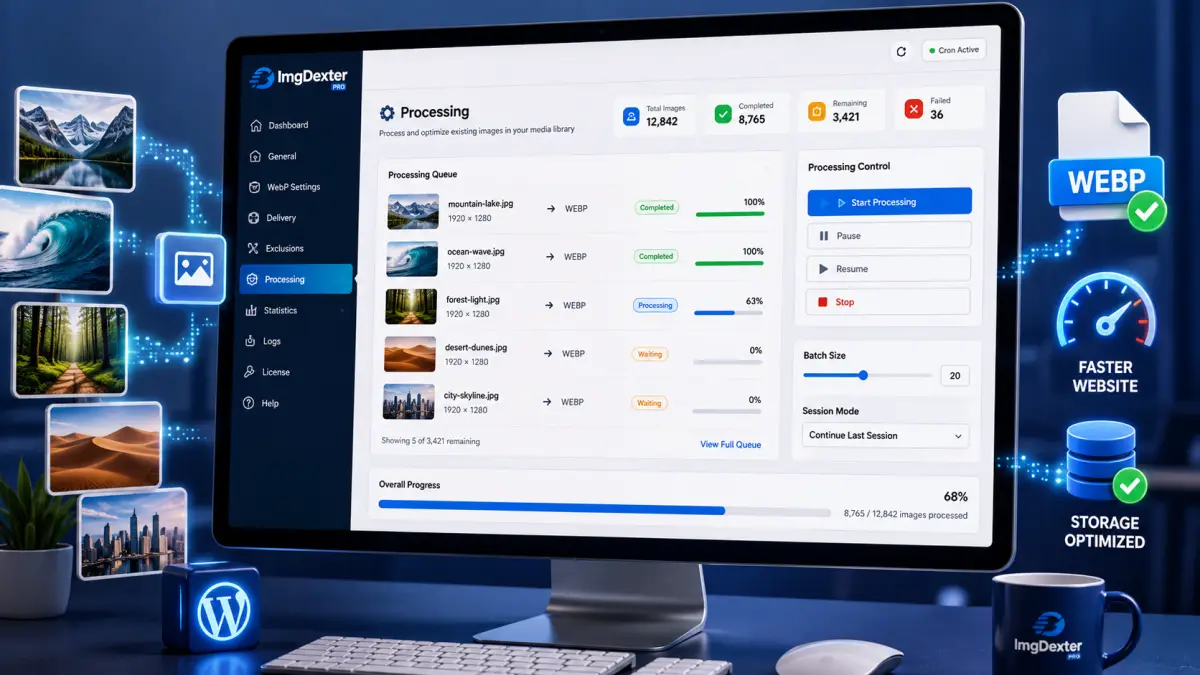
ImgDexter Pro does more than optimize newly uploaded images. It also provides a safe and organized way to process images that already exist in your Media Library. The Processing tab offers a complete workflow for scanning existing images, preparing them, adding them to the processing queue, running optimization tasks, and monitoring progress in real time.
If you install the plugin on a website that already contains hundreds or even thousands of images, this is the tab you will use to apply your optimization settings to those existing files.
Browse the Table of Contents:
Processing Tab Overview
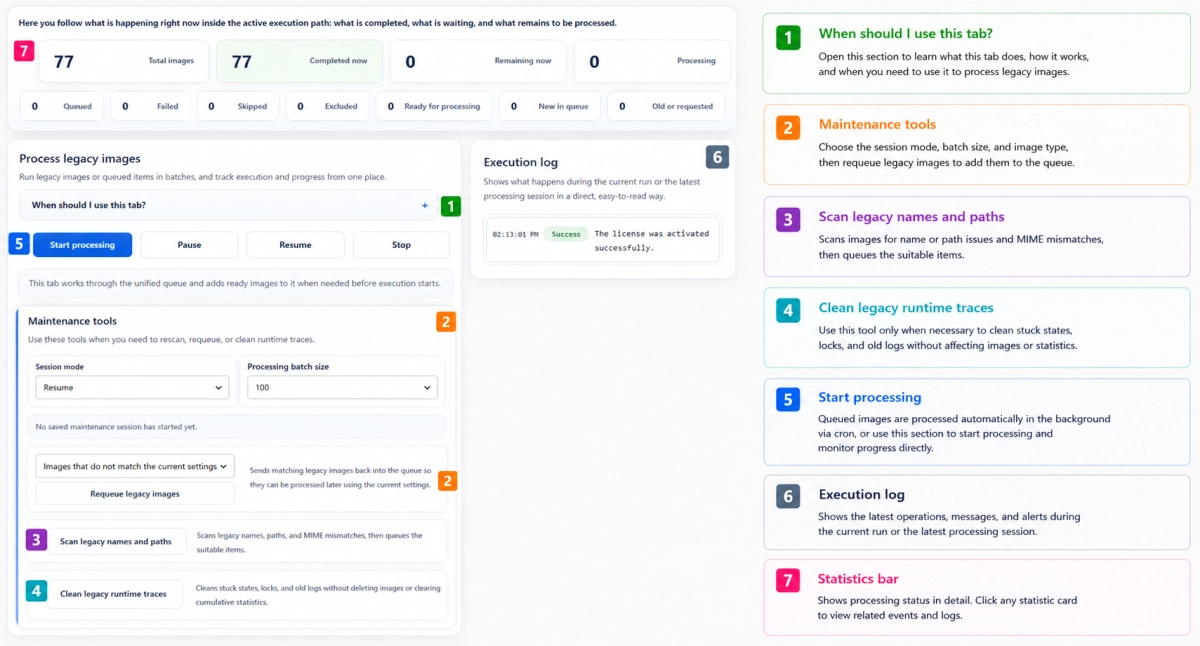
The Processing tab brings together all tools related to existing image processing in one place, from preparing and scheduling images to managing execution, reviewing logs, and monitoring detailed statistics.
The numbered markers shown in the screenshot highlight the main functions available within the tab, which we will explain below.
1. When Should You Use the Processing Tab?
This help card provides a quick explanation of the tab’s purpose and how it works.
The Processing tab is useful when you need to:
- Process images that existed before installing the plugin.
- Apply new optimization settings to older images.
- Process images that have been manually added to the queue.
- Monitor large processing operations from a single location.
New images uploaded after the plugin has been configured are typically handled automatically according to your settings, so you will usually only need this tab when working with existing media library content.
2. Maintenance Tools and Preparing Existing Images
Before processing begins, ImgDexter Pro provides a set of maintenance tools designed to prepare existing images for optimization.
Session Mode and Batch Retrieval Size
Session Mode determines how the plugin handles image discovery and preparation during the current processing session.
For example, you can continue a previous session so the plugin resumes scanning the Media Library and gradually adds eligible images to the processing queue until the entire library has been reviewed. Alternatively, you can start a new session, which is useful when processing existing images for the first time or when you want to reprocess them.
The Batch Retrieval Size setting determines how many images are scanned and added to the queue during each operation.
If your server has limited resources, smaller values are recommended to reduce load. More powerful servers can use larger values to speed up the preparation process.
Important: These settings are directly connected to the maintenance tools below them and determine how those tools operate while preparing and queueing images.
Reschedule Existing Images
After selecting the session mode and batch retrieval size, choose one of the following options:
- Images Not Compatible with Current Settings
- All Existing Images
The first option only targets images that no longer match your current settings. This is especially useful after changing options such as:
- WebP quality settings.
- Image dimensions.
- Cropping settings.
- Skip and exclusion rules.
The second option targets all existing images in the Media Library.
After making your selection, click:
Reschedule Existing Images
Monitoring the Rescheduling Process
After rescheduling starts, monitor the execution log to see how many images have been discovered and how many remain in the Media Library.
You can repeat the rescheduling process periodically until all eligible images have been added to the queue.
Avoid repeatedly clicking the reschedule button within a short period of time, as doing so may consume unnecessary server resources.
Once images are added to the queue, they become ready for processing. Processing then runs automatically according to the Cron system configured on your website and the batch size specified in the plugin settings, which defaults to 20 images per batch.
3. Filename and Path Validation
After configuring the session mode and batch retrieval size, you can also use the validation tool to identify images that may have filename or path-related issues.
The validation process looks for:
- Filenames that contain organizational or compatibility issues.
- Invalid or incompatible paths.
- File type mismatches.
- Items that require additional preparation or review.
Once the scan is completed, valid items are added to the processing queue.
This helps reduce potential issues and improve processing accuracy, especially on websites with large or older media libraries.
4. Cleaning Old Processing Artifacts
In rare cases, you may need to remove:
- Temporary locks.
- Stuck processing states.
- Old execution records.
This tool clears those operational artifacts without deleting original images, WebP files, or cumulative statistics.
It should only be used when necessary or when a clear operational issue is present.
5. Starting and Managing Processing
This section provides direct control over the current processing session.
It is useful when you want to start processing immediately instead of waiting for the next Cron cycle, or when you need full manual control over the items currently waiting in the queue.
Start Processing
Begins processing all images currently waiting in the queue using the active plugin settings.
Pause
Temporarily pauses processing while preserving current progress.
Resume
Continues processing from the point where it was paused.
Stop
Ends the current processing session completely.
These controls make it easier to manage large media libraries without restarting the entire workflow.
6. Execution Log
The execution log displays the latest events and actions performed during the current processing session or the most recent completed session.
The log may include messages such as:
- New images added to the queue.
- A new processing batch starting.
- Successful image processing.
- WebP file generation.
- Images skipped according to current settings.
- System messages and operational warnings.
This log helps you understand exactly what is happening during processing without needing access to server logs.
7. Statistics Dashboard
The statistics section provides a live overview of processing activity and current status.
Common statistics include:
| Status | Description |
|---|---|
| Total Images | Total number of images included in the processing workflow |
| Completed | Images successfully processed |
| Remaining | Images still waiting to be processed |
| Processing | Images currently being processed |
| Waiting | Images currently in the queue |
| Failed | Images that could not be processed successfully |
| Skipped | Images skipped according to current rules |
| Excluded | Images excluded by configuration |
| Ready | Images prepared and ready for processing |
Some statistics cards may be clickable, allowing you to view additional information related to that specific status.
Practical Example: Processing an Existing Media Library
If you install ImgDexter Pro on a website that already contains existing images, you can follow these steps:
- Open the Processing tab.
- Select an appropriate batch retrieval size for your server.
- Reschedule existing images using the option that best fits your needs.
- Run filename and path validation if necessary.
- Click Start Processing for immediate execution, or allow processing to run automatically through your configured Cron system.
- Monitor the execution log during processing.
- Track progress through the statistics dashboard until the operation is complete.
Following this workflow allows you to optimize older images in a safe and organized manner without manually handling files.
Conclusion
The Processing tab in ImgDexter Pro provides a complete environment for managing existing images in your Media Library. Through preparation tools, validation utilities, maintenance options, execution logs, and detailed statistics, you can confidently manage the entire processing lifecycle whether you are working with dozens of images or a media library containing thousands of files.