
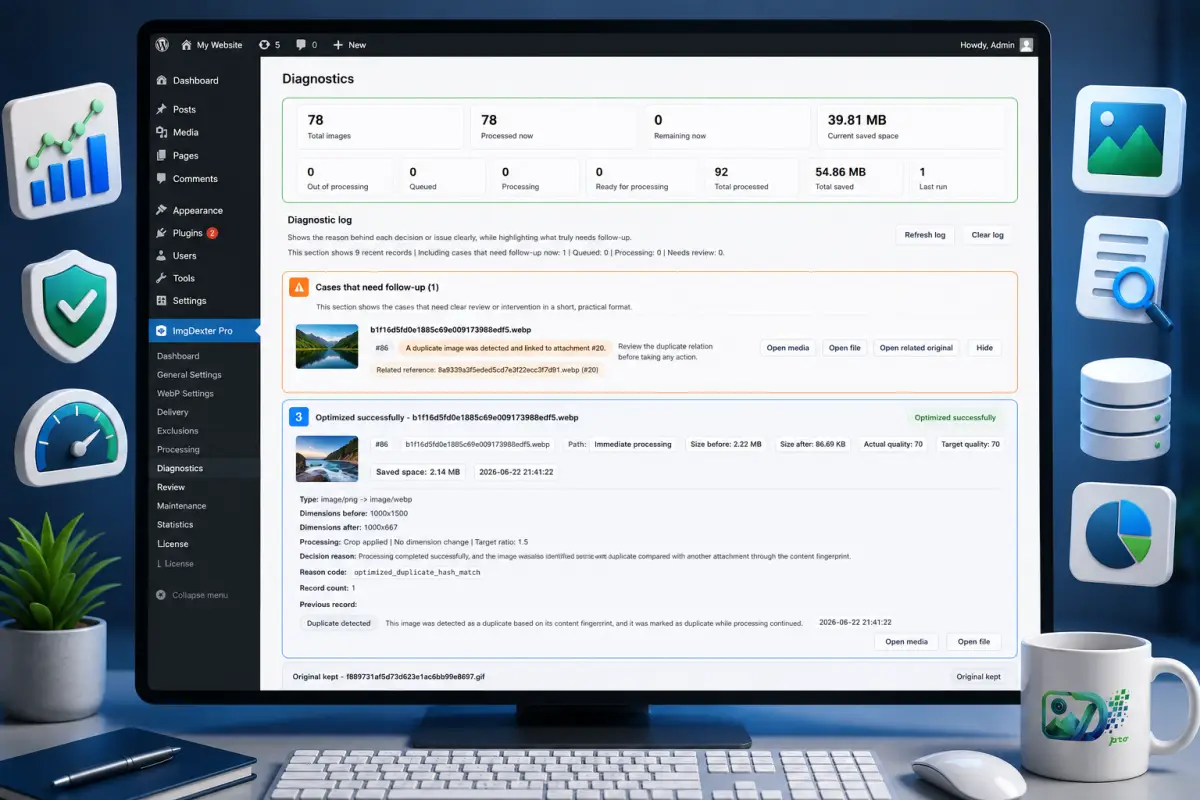
After processing your images, you may need to review what happened during the operation, examine a decision made by the plugin, or determine why a particular image was skipped or why the original file was retained.
The Diagnostics tab provides a monitoring dashboard that displays image status, processing results, and items that may require review. It helps you understand and diagnose the actions performed by ImgDexter Pro without searching through your website files or server logs.
In this guide, you will learn about the different sections of the Diagnostics page, how to read the displayed information, and how to use it to monitor ImgDexter Pro’s performance.
Browse the Table of Contents
When Should You Use the Diagnostics Tab?
It is recommended to review the Diagnostics page in the following situations:
- After completing your first image processing operation.
- After processing a large number of legacy images.
- After changing quality, dimension, or optimization settings.
- When a specific image is not processed as expected.
- When an item appears that requires attention.
- Before contacting technical support about a processing issue.
- When you want to review the details of recent operations.
Note: The Diagnostics tab is not used to start image processing. It is designed to monitor completed operations and help you understand their results by displaying the latest actions performed by the plugin.
Diagnostics Page Overview
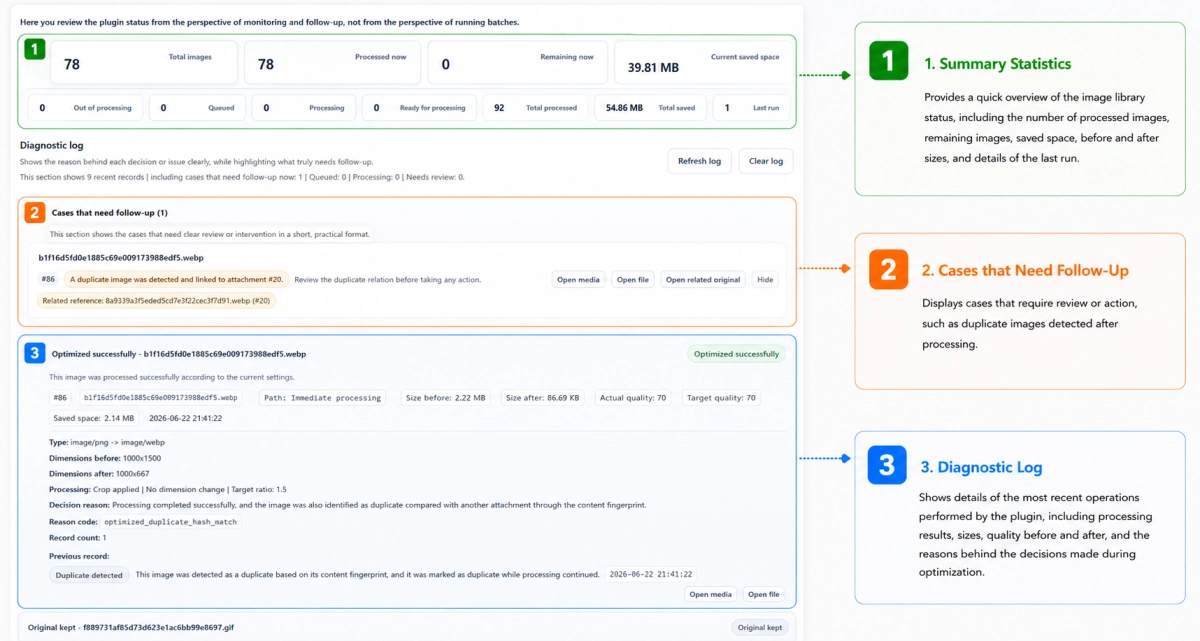
The Diagnostics page is divided into three main sections:
- Statistics Summary.
- Items Requiring Attention.
- Diagnostics Log.
Each section serves a different purpose and helps you understand the status of your Media Library and review image processing results.
First: Statistics Summary
The top section of the page provides a quick summary of image status and the processing operations recorded by the plugin.
The information displayed may include:
- Total number of images.
- Number of images currently processed.
- Number of remaining images.
- Current total space saved through image processing.
- Images waiting to be processed.
- Images ready for processing.
- Images outside the processing scope.
- Total number of images processed by the plugin.
- Total storage space saved across all processing operations, including operations recorded before legacy traces were cleaned up.
- Information about the most recent processing run.
This section allows you to understand the overall status of your Media Library without reviewing each individual log entry.
For example, if the values for remaining, waiting, and ready-to-process images are all zero, there are currently no pending processing tasks.
However, this does not necessarily mean that every image file on the website has been processed. Some images may be excluded or may fall outside the scope of the current settings.
Second: Items Requiring Attention
This section displays situations detected by the plugin that may require review or a decision.
An item appearing in this section does not necessarily indicate an error. It may simply be a notification that helps you review a specific file before taking further action.
In the example shown, ImgDexter Pro detected a duplicate image associated with another attachment and added it to the list of items requiring attention.
Information Displayed for Each Item
An item may include:
- The image filename.
- The attachment ID in the WordPress Media Library.
- The reason the item was flagged.
- The related file or attachment.
- Available review actions.
Review Action Buttons
Open Media: Opens the attachment in the WordPress Media Library, allowing you to review its details and associated content.
Open File: Opens the image file directly so you can inspect its content and quality.
Open Related Original: Appears when another image or attachment is associated with the item, such as when a duplicate file is detected.
Hide: Removes the item from the attention list after you have reviewed it and no longer need it to remain visible.
Additional action buttons may appear depending on the type of item.
Warning: Do not delete a duplicate image before checking which pages or posts use each file. The two images may be associated with different content on your website.
Third: Diagnostics Log
The Diagnostics Log is one of the most important sections of the page because it displays detailed information about the operations ImgDexter Pro performed on each image.
Each log entry may include:
- Image filename.
- Attachment ID.
- Operation result.
- File type before and after processing.
- Original and final image dimensions.
- File size before optimization.
- File size after optimization.
- Amount of storage space saved.
- Target quality.
- Final quality.
- The reason behind the plugin’s decision.
- Decision or status code.
- Date and time of the operation.
- Information about previous operations performed on the image.
These details help you understand what happened to an image and why a particular result was produced.
How to Read a Diagnostics Log Entry
Each log entry represents an operation or decision associated with a specific image. You can review it in the following order:
- Check the image filename and attachment ID.
- Review the operation status, such as successful optimization or original file retained.
- Compare the file size before and after processing.
- Review the amount of storage space saved.
- Check the target quality and final quality.
- Review the file type before and after conversion.
- Compare the original dimensions with the resulting dimensions.
- Read the reason recorded for the plugin’s decision.
- Use the decision code when contacting technical support.
File Size Before and After Optimization
The log displays both the original file size and the resulting file size after processing.
In the example shown, the image size was approximately 2.22 MB before processing and 86.69 KB afterward, resulting in a saving of approximately 2.14 MB.
This information helps you evaluate the effect of the plugin on image file sizes and storage usage.
Target and Final Quality
The log displays the quality value requested by the current settings and the final quality used for the processed file.
When both values are identical, the image was processed using the configured quality setting.
File Type
This field displays the image format before processing and the resulting format, for example:
image/png → image/webp
This means the original image was in PNG format and was converted to WebP.
Dimensions Before and After Processing
The log displays both the original and final image dimensions.
The dimensions may change when maximum width or height limits are enabled, or when cropping and resizing settings are applied.
Decision Reason
This section explains why the plugin produced a particular result, such as successfully optimizing an image, detecting a duplicate, or deciding to retain the original file.
Reviewing the decision reason before changing any settings helps you determine whether the result is expected or requires further action.
Reason Code
The plugin may display a short technical code, such as:
optimized_duplicate_hash_match
In the example shown, this code indicates that the image was successfully optimized and that another matching image was detected using a content hash.
Most users do not need to memorize these codes. However, they can be useful when troubleshooting an issue or contacting technical support.
Previous Log
If the plugin has already handled the image, or if the image passed through multiple processing stages, a section called Previous Log may appear.
This section helps you review previous decisions associated with the file, understand the stages the image passed through, and compare the current result with earlier processing results.
Understanding Diagnostics Log Statuses
The displayed status may vary depending on the result of each image processing operation.
| Status | Meaning |
|---|---|
| Optimized Successfully | The image was processed successfully using the current settings. |
| Original Retained | The plugin determined that retaining the original file was the best option based on the configured settings. |
| Skipped | The plugin did not perform a new processing operation because of the current rules or conditions. |
| Excluded Image | The image is included in an excluded file, directory, or path rule. |
| Duplicate Detected | The plugin detected another file that matches or is associated with the image. |
| Requires Attention | The item should be reviewed before a decision is made. |
Note: Status names may vary depending on the ImgDexter Pro version and the type of operation performed.
When Do You Need to Take Action?
In most cases, no action is required, especially when the displayed records are informational and confirm that processing was completed successfully.
However, you should review your settings or files when you notice:
- Repeated failures or unexpected skipped operations.
- A large number of images waiting to be processed.
- Items that repeatedly appear in the attention list.
- Image file sizes not decreasing as expected.
- Unexpected changes to image dimensions.
- Duplicate images that require manual review.
- A decision that does not match the current quality or resizing settings.
Always begin by reviewing the decision reason in the log before changing the settings or processing the images again.
Refreshing and Clearing the Log
The Diagnostics tab provides two buttons for managing log records.
Refresh Log
Use the Refresh Log button to display the latest results and items recorded by the plugin.
The information is refreshed automatically when you open the Diagnostics tab. You can also use the Refresh Log button after a new processing operation has finished or while waiting for a result associated with a particular image.
Clear Log
Use the Clear Log button to remove older diagnostics records when they are no longer needed.
It is not recommended to clear the log while investigating an issue because it may contain information that helps explain previous decisions or provides useful details for the support team.
Clearing the log should also not be treated as a solution for items that require attention. Always review the reason behind each item first.
Best Practices
To get the most from the Diagnostics tab:
- Review the page after your first large processing operation.
- Read the decision reason before changing the plugin settings.
- Do not assume that every displayed item is an error; many entries are informational.
- Monitor the Statistics Summary to quickly understand the status of your Media Library.
- Keep the log available while testing new settings so you can compare results.
- Review duplicate files before deleting any image.
- Include the status code and relevant log details when contacting technical support.
Conclusion
The Diagnostics tab in ImgDexter Pro provides a clear overview of your Media Library status and image processing results.
It allows you to review the Statistics Summary, handle items that require attention, and examine the details of each processing operation, including file size, quality, dimensions, file type, and the reason behind the plugin’s decision.
Reviewing this tab regularly helps you identify potential issues early, understand how the plugin behaves, and confirm that your image optimization settings are working as expected.