
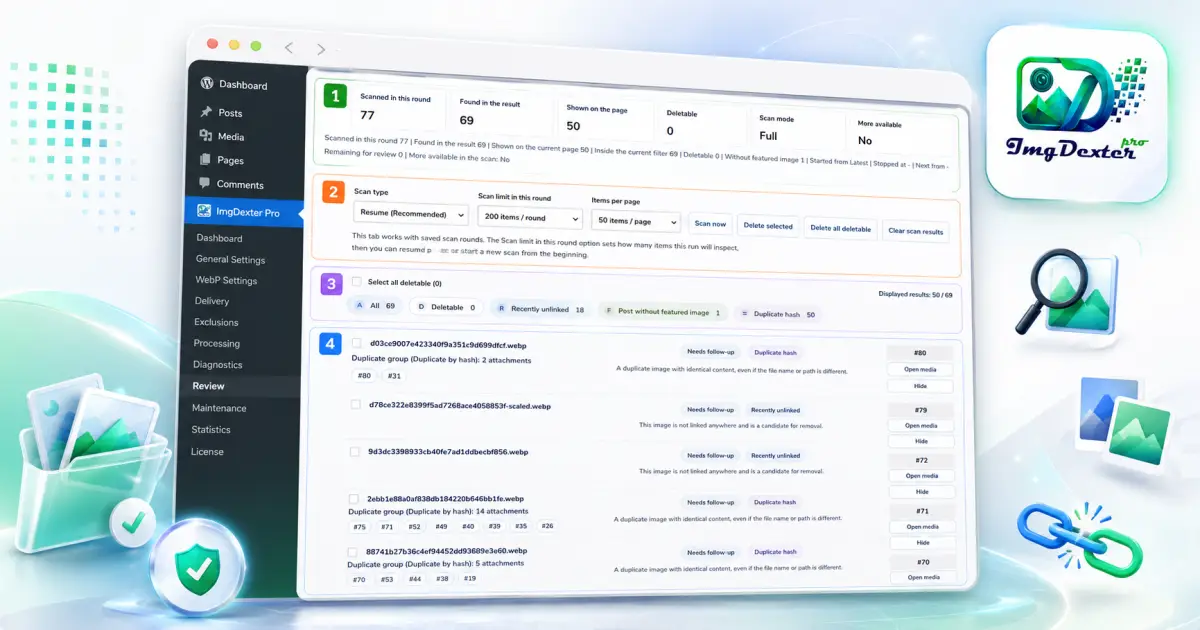
Over time, a WordPress media library may accumulate duplicate images, files that are no longer linked to any content, and image URLs that point to missing files. Some posts may also have no featured image assigned, affecting how they appear across the website.
Detecting these cases manually becomes increasingly difficult as the website grows and the number of images and posts increases. This is especially true for news websites, online stores, and websites that publish new content regularly.
For this reason, ImgDexter Pro includes a dedicated Review tab. It is an independent system that audits the media library and analyzes the relationships between images and website content. It then categorizes the detected cases and provides the details needed to review them before taking any action.
The Review tab does not optimize images, compress them, convert their formats, or change their dimensions. Its purpose is limited to scanning, detecting, organizing, and reviewing potential issues while leaving the final decision to the user.
In this guide, you will learn how the Review tab works, how its interface is organized, which cases it can detect, and how to review the results safely.
Browse the Table of Contents
What Is the Review Tab?
The Review tab is an independent auditing center within ImgDexter Pro. It scans the WordPress media library and website content to find cases that require attention.
It can detect cases such as:
- Duplicate images identified through file-content fingerprints.
- Images that are not currently linked to any known content.
- Broken image links inside posts.
- Posts that do not have a featured image.
- Items that have reached a state in which they may be deleted.
- Other review cases that may appear depending on the scan results.
Instead of manually searching through thousands of files, the plugin collects the results in one interface, categorizes them by case type, and displays the reason each item was detected along with the links required to review it.
Note: An item appearing in the Review tab does not automatically mean that it is unnecessary or safe to delete. It may be used indirectly or may require repair rather than deletion.
The Difference Between Review, Processing, and Diagnostics
The three tabs perform different functions within ImgDexter Pro:
| Tab | Function |
|---|---|
| Processing | Optimizes image files, converts their formats, or changes their dimensions according to the plugin settings. |
| Diagnostics | Displays the results and decisions recorded during image-processing operations. |
| Review | Audits the media library and website content to detect duplicates, broken image links, unlinked images, and posts without featured images. |
The Review tab does not start a new image-optimization process, and its results are not related to file compression ratios, final image quality, or output formats.
When Should You Use the Review Tab?
It is useful to run a review scan in the following situations:
- When a large number of images has accumulated in the media library.
- After migrating the website or importing content from another website.
- After deleting files or manually changing image paths.
- When some images no longer appear inside published posts.
- When you want to detect duplicate files.
- Before cleaning up the media library.
- After deleting old posts or pages.
- When reviewing posts that have no featured image.
- When looking for images that are not currently linked to known content.
- When investigating why the media library has grown significantly.
You can also run the scan periodically on websites where new images are uploaded regularly.
How Does the Review Tab Work?
The Review tab uses a system of successive scan rounds. It does not require all website items to be scanned in a single operation.
The user selects the number of items that the plugin should inspect during the current round. After the round is complete, the plugin saves its stopping point so that the scan can continue from the next item during a later round.
The general process works as follows:
- The user starts a full scan from the beginning.
- The plugin scans the number of items selected for the round.
- It saves the stopping point after the operation finishes.
- It categorizes the cases it detected.
- It displays the results in the Review interface.
- The user starts another round in resume mode.
- The plugin continues from the last saved position.
- The process is repeated until all items have been scanned.
This approach makes it possible to review large media libraries gradually without requiring one long scan to process every item at once.
Example of Multiple Scan Rounds
Suppose the website contains 1,000 items and you set the scan limit to 200 items per round. The scan may be completed in approximately five rounds:
- Round 1: Items 1 to 200
- Round 2: Items 201 to 400
- Round 3: Items 401 to 600
- Round 4: Items 601 to 800
- Round 5: Items 801 to 1000
The actual number may vary depending on the scan scope and the items processed by the plugin. The main principle is that each new round resumes from the last saved position until the scan is complete.
Review Tab Overview
The Review interface is divided into four main sections:
- Scan summary.
- Scan management.
- Scan-result categories.
- Detailed scan results.
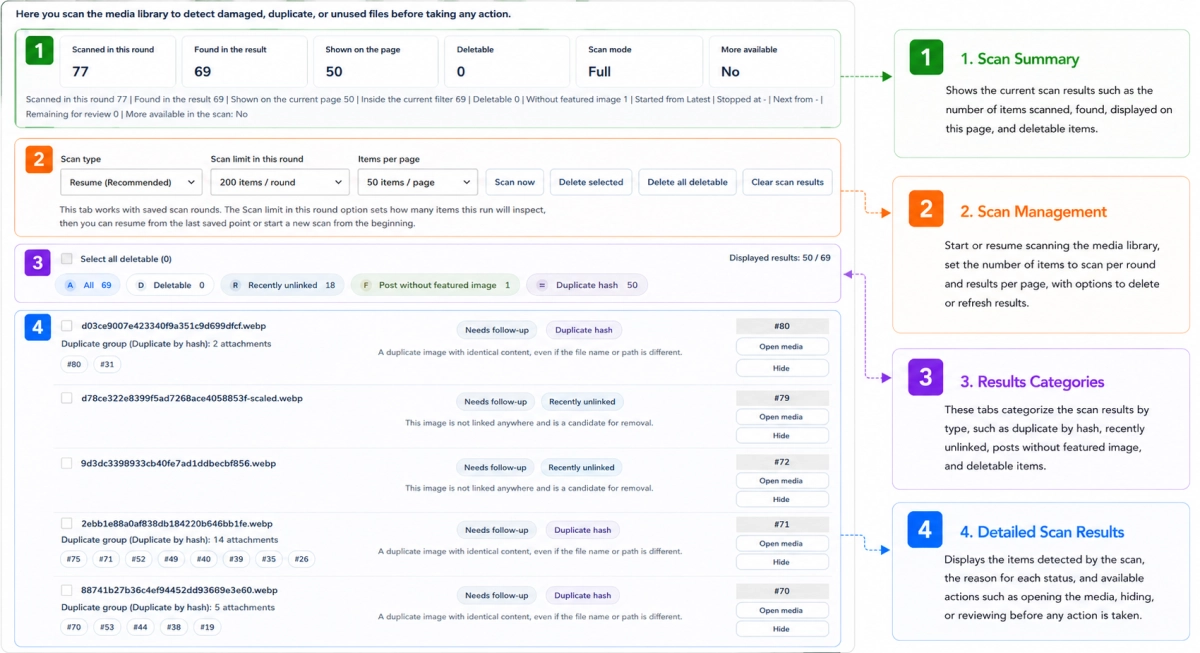
First: Scan Summary
The upper section of the page displays a quick summary of the current scan status and recorded results.
The summary may include:
- The number of items scanned during the current round.
- The number of detected results.
- The number of results currently displayed on the page.
- The number of items marked as deletable.
- The current scan mode.
- Whether more items remain available for scanning.
This section helps you understand the status of the current round without reviewing every result individually.
Scanned in This Round
This value shows the number of items inspected by the plugin during the current operation.
It does not necessarily equal the number of detected issues. The plugin may inspect an item without finding any case that needs to be displayed.
For example, if the plugin scans 200 items and detects only 30 cases, the scanned-items value will be 200, while the detected-results value will be 30.
Detected in Results
This value represents the total number of cases detected and added to the Review results.
These results may be distributed across several categories, including:
- Broken image links.
- Posts without featured images.
- Recently unlinked images.
- Fingerprint duplicates.
- Deletable items.
Visible on the Current Page
This value shows the number of results currently displayed in the results interface.
It does not necessarily represent all detected results, because the results may be distributed across multiple pages.
For example, if the plugin detects 180 results and the Items Per Page option is set to 50, only 50 results will appear on the current page. You can access the remaining results through the page numbers and the Previous and Next navigation controls at the bottom of the list.
It is therefore important to distinguish between:
- Detected in Results: The total number of recorded cases.
- Visible on the Current Page: The cases displayed on the page you are currently viewing.
- Items Per Page: The maximum number of results displayed on each page.
Deletable
This value shows the number of items currently included in the Deletable category.
A large number of detected results combined with a value of zero in this field means that the plugin found cases that require review but did not classify any of them as ready for deletion.
Warning: Do not treat the total number of detected results as the number of images that can be deleted. There is an important difference between detecting a case for review and classifying an item as deletable.
Scan Mode
This field shows the mode used for the current scan round, such as:
- Full scan from the beginning.
- Resume from the last saved position.
A full scan is used the first time you run the Review tool or when you intentionally want to begin a new scan from the start. Resume mode is used to continue the following rounds.
More Available
This indicator shows whether additional items remain available for scanning.
If the value is Yes, the scan has not yet reached all available items and another resume round can be started.
If the value is No, the plugin does not see any additional items remaining in the current scan path.
Second: Managing the Scan
This section contains the options used to start scan rounds, control the number of scanned items, and manage how the results are displayed.
Scan Type
This option determines how the plugin starts the current round.
Full Scan from the Beginning
This mode starts the scan from the first item in the selected scope.
Use it:
- When running the Review scan for the first time.
- When you intentionally want to begin a new scan from the start.
- After major website changes that require the entire library to be audited again.
After the first round is complete, the plugin saves its stopping point, allowing the next round to continue in resume mode.
Resume Scan
This mode continues the scan from the last saved position instead of returning to the beginning of the library.
After the first round, resume mode becomes the appropriate choice for subsequent rounds. The process continues this way until all available items have been inspected.
Note: Do not start another full scan unnecessarily while an existing scan path is still incomplete. Resume mode is designed to continue the previous rounds from their saved stopping point.
Scan Limit for This Round
This setting determines the number of items the plugin will attempt to inspect during the current operation.
For example, the option may be set to:
200 items per round
This means the round will inspect up to 200 items, then stop and save its position so that another round can be started later.
The appropriate value depends on the size of the website and the available server resources. You can begin with a moderate value and increase it later if the scan rounds complete without problems.
Items Per Page
This setting controls how many results are displayed on each results page.
For example:
50 items per page
This setting does not affect how many items the plugin scans. It only controls how many detected results appear in the interface at one time.
When the total number of results exceeds the selected value, the remaining results appear on additional pages that can be accessed through the page navigation controls below the list.
Scan Now
This button starts a scan round using the current settings.
When Full Scan from the Beginning is selected, the plugin starts from the first item.
When Resume is selected, the round starts from the position where the previous operation stopped.
After the round finishes, the summary values, category tabs, and results list are updated.
Delete Selected
This option deletes the items you manually selected from the results list.
Review every item before selecting it, especially when dealing with:
- Duplicate files.
- Unlinked images.
- Images that may be used by themes or plugins.
- Attachments associated with multiple posts.
Delete All Deletable Items
This option deletes the items currently included in the Deletable category.
It does not apply to every detected result, and it does not automatically delete every duplicate or unlinked image. It is limited to items that appear in the dedicated deletable category.
Warning: Create a backup of the website files and database before performing any bulk-deletion operation.
Clear Scan Results
This option removes the recorded scan results from the Review interface.
You can use it when the current results are no longer needed or when preparing to begin a new scan.
Clearing scan results does not necessarily delete the image files themselves, and it does not repair detected issues. For example, a broken image URL inside a post will remain broken until the post is corrected, even after the corresponding scan result has been cleared.
Third: Scan-Result Categories
After a round is complete, ImgDexter Pro categorizes the results according to the detected case type.
The displayed tabs are not always fixed. They change depending on the cases found during the scan. Some categories may appear on one website but not another, and the number of categories may increase or decrease between rounds.
For example, the category tabs may appear as follows:
| Symbol | Category | Example Count |
|---|---|---|
| A | All | 180 |
| D | Deletable | 0 |
| R | Recently Unlinked | 1 |
| F | Post Without Featured Image | 39 |
| B | Broken Link in Post | 138 |
| = | Fingerprint Duplicate | 2 |
The symbols help distinguish the categories visually, while the number beside each tab shows how many results belong to that category.
Additional categories may appear depending on the types of cases recorded by the plugin.
All
This tab displays every detected result, regardless of its type.
The number shown beside it represents the total number of cases recorded in the current scan results.
Deletable
This tab displays items that have reached a review state in which deletion can be considered.
Even so, it is recommended to open and verify each item before deleting it, particularly on websites that use custom themes, custom fields, or plugins that store image relationships indirectly.
Recently Unlinked
This tab displays recently uploaded images that are not currently linked to known content.
The plugin handles these items cautiously because a recently uploaded image may be intended for later use or may be associated with a draft or a setting that does not appear through standard WordPress relationships.
These items therefore usually require follow-up and should not immediately be treated as unnecessary files.
Post Without Featured Image
This tab displays posts that do not have a featured image assigned.
The scan is not checking whether the post contains any image inside its body content. A post may contain several inline images and still appear in this category when no featured image has been assigned through the WordPress featured-image field.
Depending on the website design, the featured image may appear at the beginning of the post and may also be used in content cards, archive pages, and category pages.
Broken Link in Post
This category displays cases where a post contains a link to an image that no longer exists or cannot be accessed.
The related post must be reviewed so that the broken URL can be repaired or the missing image can be replaced.
Hiding the result or clearing the scan results does not repair the link inside the post.
Fingerprint Duplicate
This category displays images whose contents were identified as matching through a file fingerprint.
The detection process does not rely only on the image filename. Two images can therefore be identified as duplicates even when:
- Their filenames are different.
- Their storage paths are different.
- Each file has a different WordPress attachment ID.
The plugin may group several attachments into a single duplicate group and display their filenames and attachment IDs so that each copy can be reviewed.
Fourth: Detailed Scan Results
This section displays the cases detected by the plugin together with the information required to understand each result.
A result may include:
- The image filename.
- The attachment ID.
- The post title when the case is related to content.
- The case type.
- The reason the item was detected.
- The review status.
- Related images or attachments.
- The duplicate group.
- Available actions.
- A checkbox for selecting the item.
Image Names and Attachment IDs
The image names and attachment IDs shown inside each case are not merely informational text. They are clickable links.
You can use them to open the files or attachments associated with the case and review them directly.
This is particularly useful when reviewing duplicate groups, because each attachment in the group can be opened separately before deciding which copy should be retained.
Depending on the result type, you may be able to review an item by:
- Clicking the image filename.
- Clicking the attachment ID.
- Opening related items shown inside the case.
- Using the Open Media button.
- Opening the related post when a link is available.
Case Type
This field explains why the item was included in the Review results, such as:
- Fingerprint Duplicate.
- Recently Unlinked.
- Broken Link in Post.
- Post Without Featured Image.
- Deletable.
Needs Review
This status means that the item requires user review before any action is taken.
It does not mean that the plugin encountered an error, and it does not mean that the file should be deleted. There may be relationships or contextual details that cannot be resolved automatically.
Reason for the Result
This area provides a short explanation of why the case was detected.
For example:
- The image matches another file according to its content fingerprint.
- The image is currently unlinked but was uploaded recently.
- The post points to an image file that does not exist.
- No featured image has been assigned to the post.
Always read the reason before hiding a result or deleting an item.
How to Read a Scan Result
Review each result in the following order:
- Identify the case type.
- Read the image name or post title.
- Review the attachment ID.
- Read the reason the result was detected.
- Check whether the item needs review or is classified as deletable.
- Open the related filenames and attachment IDs.
- Review the post or attachment inside WordPress.
- Verify how the item is being used on the website.
- Choose the appropriate action only after completing the review.
Do not rely on the filename alone when judging an image. Identical images may have different filenames, while different files may have similar names.
Cases Detected by the Review Tab
Fingerprint-Duplicate Images
ImgDexter Pro uses the content fingerprint of a file to identify matching images.
This allows it to detect duplicate copies even when the following details differ:
- The filename.
- The storage directory.
- The image URL.
- The WordPress attachment ID.
What Is a Duplicate Group?
A duplicate group is a collection of files whose contents were identified as matching.
The group may contain only two attachments or a larger number of files.
The result displays the filenames and attachment IDs in the group as clickable links, allowing you to open and inspect every item.
Why Are Duplicate Images Not Deleted Automatically?
Two files may be identical in content while each attachment is used in a different location.
One page may depend on a particular attachment ID, while another page uses an identical copy with a different ID. Visual duplication alone is therefore not enough to determine that deleting one copy is safe.
How to Review a Duplicate Group
- Open every image name or attachment ID shown in the group.
- Review the details of each attachment.
- Check which posts or pages use it.
- Decide which copy should be retained.
- Replace the use of the other copies when necessary.
- Review the public-facing pages of the website.
- Delete an unnecessary copy only after confirming that it is no longer required.
Warning: Matching file fingerprints do not mean that the WordPress attachment relationships are also identical.
Images Not Linked to Any Content
An unlinked image is a file for which the scan cannot find a current relationship with a known post or content item.
However, the absence of a visible relationship does not necessarily mean that the image is unused.
The image may be used in:
- Theme settings.
- A page builder.
- A custom field.
- A menu or widget.
- A shortcode.
- Another plugin’s settings.
- Stylesheets.
- Content stored in a nonstandard way.
The image should therefore not be deleted based only on the scan result.
Recently Unlinked Images
A recent image with no detected relationship may have been uploaded for future use or may belong to a post that is still in draft form.
Review the upload date and any content currently being prepared before taking action.
Warning: Do not delete a recent image simply because it is unlinked at the time of the scan.
Broken Image Links Inside Posts
A broken image link occurs when a post points to a file that no longer exists on the website or cannot be accessed through the recorded path.
This may happen because of:
- Deleting the image from the media library or server.
- Moving files manually.
- Changing the filename or path.
- Importing a post without transferring its images.
- Changing the domain or upload URL structure.
- Deleting an attachment while leaving its URL inside the content.
How to Handle a Broken Image Link
- Open the post associated with the case.
- Locate the image that is not being displayed.
- Review the current file URL.
- Search for the image in the media library.
- Reconnect the correct file if it still exists.
- Upload a replacement if the original file is missing.
- Remove the image from the post if it is no longer needed.
- Update the post.
- Open the published page to confirm that the problem has been fixed.
- Run another scan when needed.
Posts Without Featured Images
This category displays posts that do not have a featured image assigned.
A post may contain an image at the beginning of its text or elsewhere in the body and still appear in the results when that image has not been assigned through the WordPress Featured Image field.
How to Resolve the Case
- Open the post using the link shown in the result.
- Review the post topic.
- Check the Featured Image field.
- Select a suitable image from the media library or upload a new one.
- Assign it as the featured image.
- Update the post.
- Run the scan again to confirm that the case no longer appears.
Using featured images helps maintain consistent post presentation wherever the website theme relies on them.
Deletable Items
This category collects items that have reached a deletable state according to the current review results.
It is different from cases marked Needs Review.
When the deletable count is zero, it does not mean that the scan found no issues. It means that the current results have not reached a deletable state or still require review.
Even when an item appears in this category, it is still advisable to open and verify it before proceeding.
Actions Available Within the Results
Open Media
This action opens the attachment inside the WordPress media library so that you can review its details.
These details may include:
- The filename.
- Upload date.
- Attachment title.
- Alternative text.
- Description.
- Image dimensions.
- File URL.
- Available relationship information.
Open Filenames and Attachment IDs
The filenames and attachment IDs shown inside a case can be clicked to open the related items.
This is useful when reviewing a duplicate group or any case that contains several associated files.
Hide
This action hides the result from the follow-up list after you have reviewed it.
The Hide action does not delete the image and does not repair the reason the case appeared. It is useful when you decide to keep the item and no longer need it to remain visible in the Review results.
For example, you may discover that an apparently unlinked image is used in a custom theme setting. In that case, you can hide the result instead of deleting the file.
Select an Item
The selection checkbox allows you to choose a result for a bulk action.
Do not select multiple items for deletion before reviewing each one individually, especially when dealing with duplicate groups or unlinked images.
Additional Actions
The available actions may vary depending on the case type and the installed plugin version. Some results may provide additional links to the post, file, or related attachments.
Why Does ImgDexter Pro Rely on Manual Review?
An image may appear unused when standard WordPress relationships are checked, while it is actually being used by a theme, plugin, or custom field.
Similarly, two images may contain identical file data while each attachment is associated with different content.
For this reason, ImgDexter Pro does not automatically delete a file merely because a case was detected. Instead, it displays:
- The issue type.
- The reason it was detected.
- Related items.
- The review status.
- Available actions.
This approach reduces the risk of deleting important files and gives the website administrator an opportunity to review the full context before making a decision.
Practical Example: Scanning a Large Library Across Multiple Rounds
Suppose the website contains a large number of items and you select:
Scan type: Full scan from the beginning
Scan limit: 200 items per round
Items per page: 50 results
After the first round:
- The plugin scans up to 200 items.
- It saves the stopping point.
- It displays the detected cases.
- It distributes the results across pages, with up to 50 results on each page.
For the second round:
- Select Resume mode.
- Click Scan Now.
- The plugin starts from the item following the saved stopping point.
- New results are added to the Review interface.
- The category counts are updated.
Continue in this way until the interface indicates that no more items remain to be scanned.
Practical Example: Reviewing a Duplicate Image
Suppose a result shows a fingerprint duplicate, and the duplicate group contains the following attachments:
#31
#80
To review the case:
- Click attachment ID 31 and open the image.
- Review the content that uses the attachment.
- Click attachment ID 80.
- Compare the details of both attachments.
- Decide which copy should be retained.
- Update the use of the other copy when necessary.
- Confirm that the affected pages still work correctly.
- Delete the unnecessary copy only after completing the review.
Practical Example: A Broken Image Link
When a result appears under Broken Link in Post:
- Open the post associated with the case.
- Locate the image position.
- Check whether the file still exists.
- Replace the URL or upload the image again.
- Save the post.
- Open the published page.
- Run another scan to confirm that the case has disappeared.
Practical Example: A Post Without a Featured Image
A post may appear in this category even when an image is visible at the beginning of its content. This means the image has not been assigned through the Featured Image field.
Open the post, select the appropriate image from the Featured Image panel, and save the changes.
When Do You Need to Take Action?
It is advisable to take action when you notice:
- Broken image links inside published posts.
- A large number of posts without featured images.
- Many groups of identical files.
- Old images that are not linked to any known content.
- Items appearing in the Deletable category.
- A result that continues to appear after its cause has been corrected.
- Files whose detected status does not match their actual use.
Always begin by reading the reason for the result and opening its related links before hiding or deleting anything.
Best Practices
To use the Review tab safely:
- Start with a full scan when using the feature for the first time.
- Continue later rounds in Resume mode.
- Select a scan limit appropriate for the website size and server resources.
- Use the pagination controls to access the remaining results.
- Review each category separately.
- Do not assume that an unlinked image is definitely unnecessary.
- Do not delete a duplicate copy before opening every attachment in the group.
- Repair broken links from the related post.
- Assign featured images to posts that do not have one.
- Use Hide for cases you have reviewed and decided to keep.
- Do not use bulk deletion without reviewing the selected items.
- Create a backup before deleting a large number of files.
- Run another scan after making repairs.
- Review the public-facing website after deleting files or replacing image links.
Conclusion
The Review tab in ImgDexter Pro provides an independent system for auditing the WordPress media library and analyzing how images relate to website content.
It uses successive scan rounds, beginning with a full scan from the start and continuing in Resume mode until all available items have been inspected. After each round, it displays a result summary and organizes detected cases into dynamic category tabs that change according to the scan findings.
The Review tab can identify duplicate images through file fingerprints even when their filenames, storage paths, or attachment IDs differ. It can also detect unlinked images, broken image links inside posts, and posts without featured images.
The image names and attachment IDs shown inside the results are clickable links, allowing the related files and items to be reviewed before a decision is made.
The Review tab does not process images or delete them simply because they were detected. Instead, it provides the information, categories, and actions needed to manage the media library more safely and efficiently.