
Product documentation
Documentation & Setup Guide
A comprehensive guide to help you install, activate, and configure ImgDexter Pro correctly, understand its workflow, manage image optimization tasks, and use diagnostics and review tools to achieve better performance and stability for your WordPress website.
Secure Operation Operating Guide
Comprehensive Diagnosis Operating Guide
Integrated Support Operating Guide
Installation & Activation
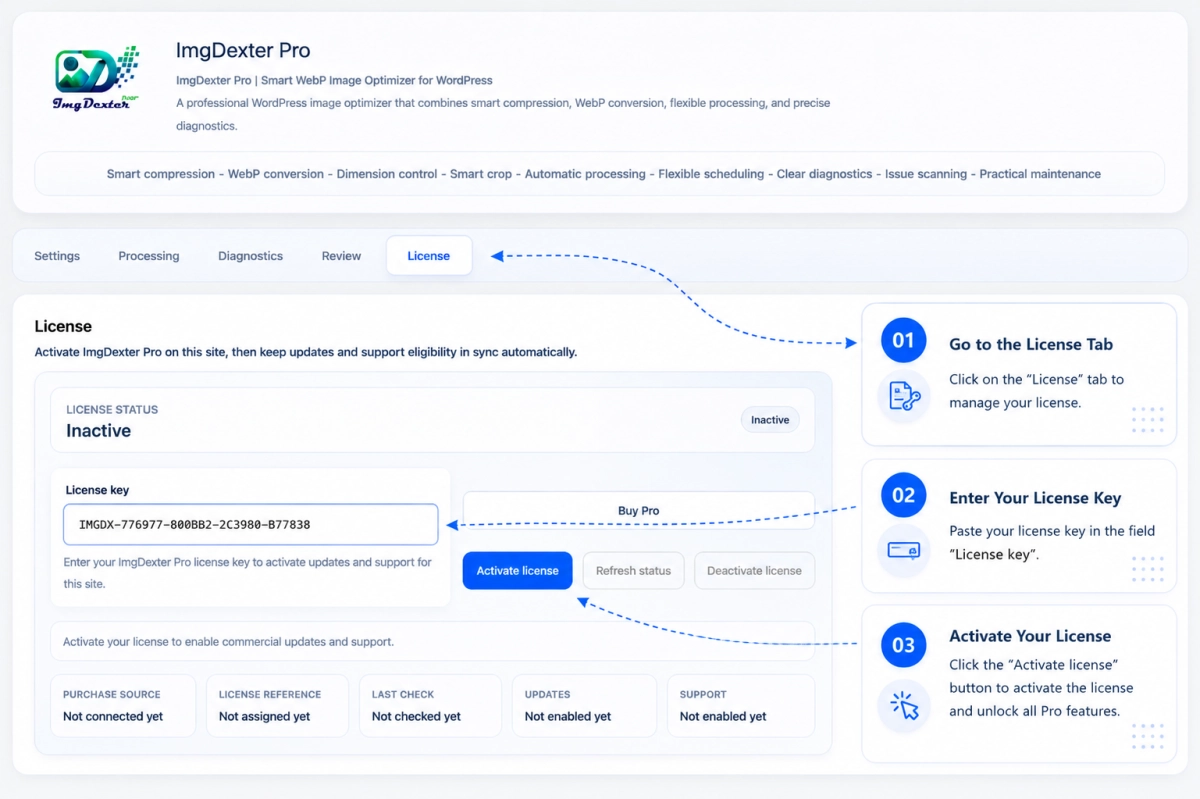
Install the plugin, activate it, then activate the license from the dashboard.
Basic Settings
Configure image settings, size limits, and exclusion rules.
Processing & Review
Start processing existing media, then review and check site performance efficiently.
Operation Guide
Setup and usage steps
Documentation & Setup Guide
This guide helps you install ImgDexter Pro, activate it, configure its main settings correctly, understand the workflow, manage image optimization tasks, review results, and handle common issues. It includes the essential steps and best practices for achieving better performance and stability.
System Requirements
✔ WordPress 5.8 or later
✔ PHP 7.4 or later
✔ GD Library with WebP support
✔ Permission to upload and install plugins
✔ PHP 8.0 or later is recommended for best performance
Installation & Initial Setup
Upload the Plugin
Upload the ImgDexter Pro ZIP file from the Plugins section inside WordPress.
Activate the Plugin
Activate the plugin and wait for the initial setup process to complete.
Open the Dashboard
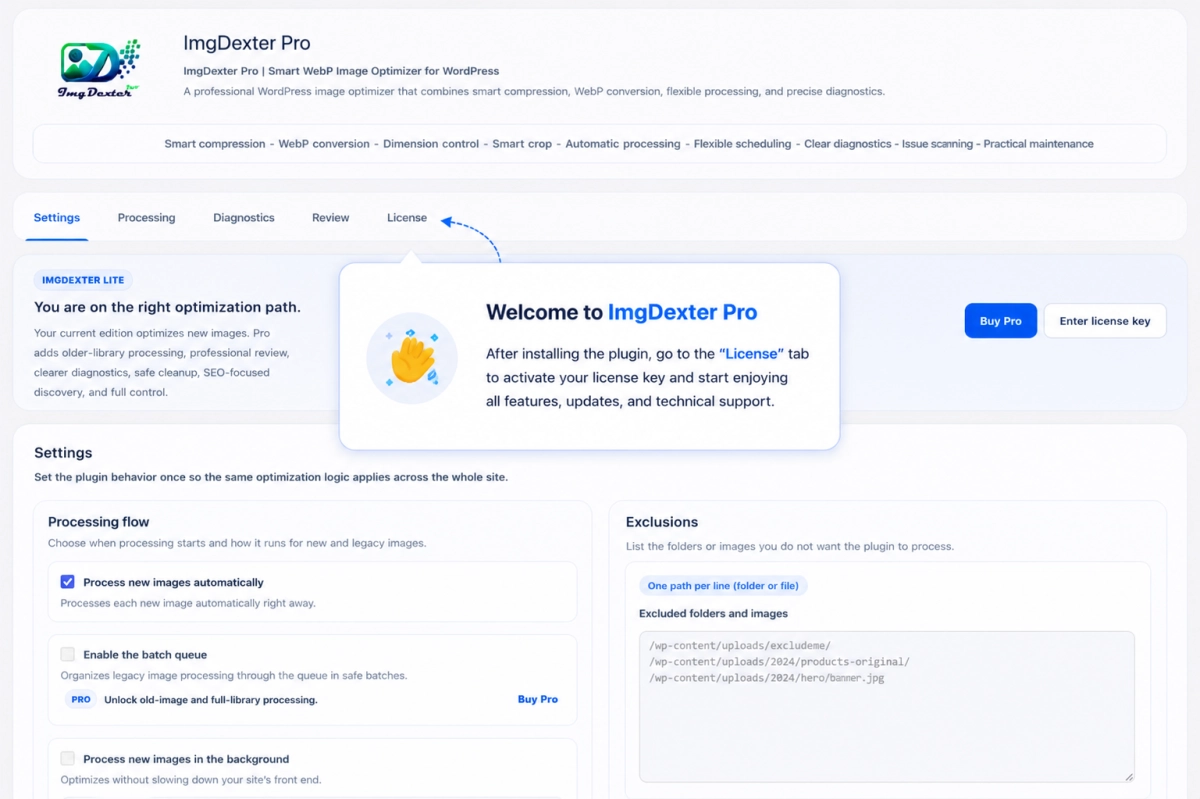
Open the ImgDexter page from the admin menu to access all settings and tools.
Review the Settings
Review the default settings and choose the options that best match your website.
Start Using ImgDexter
You can begin optimizing new uploads or prepare legacy media processing.
Core Settings
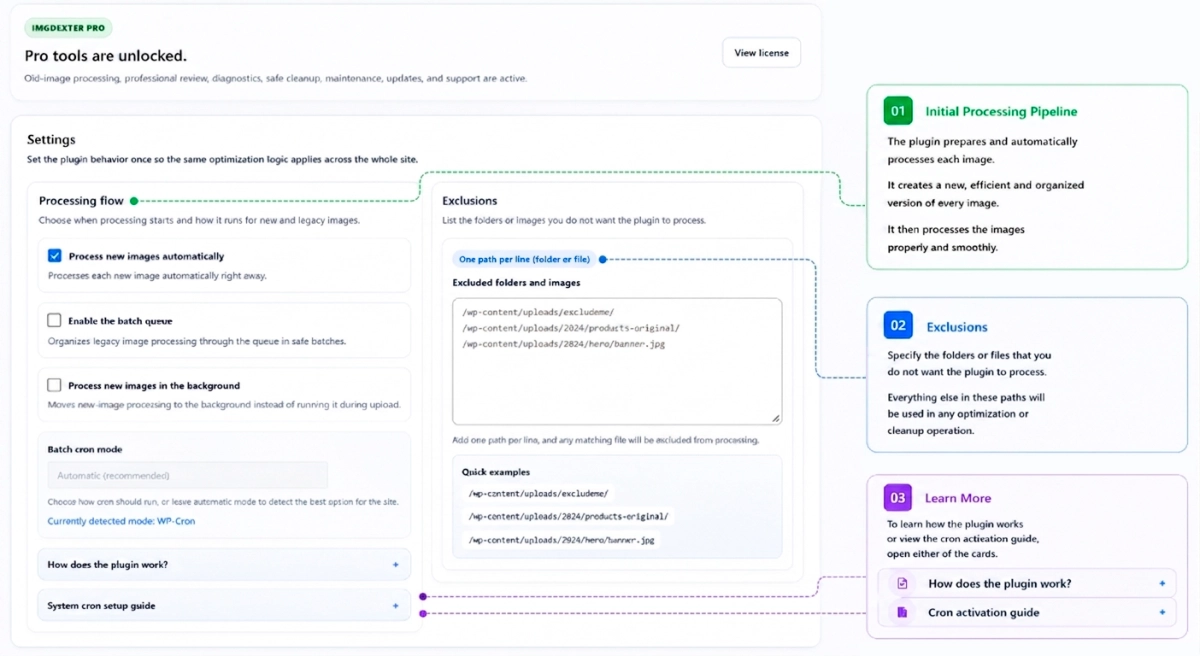
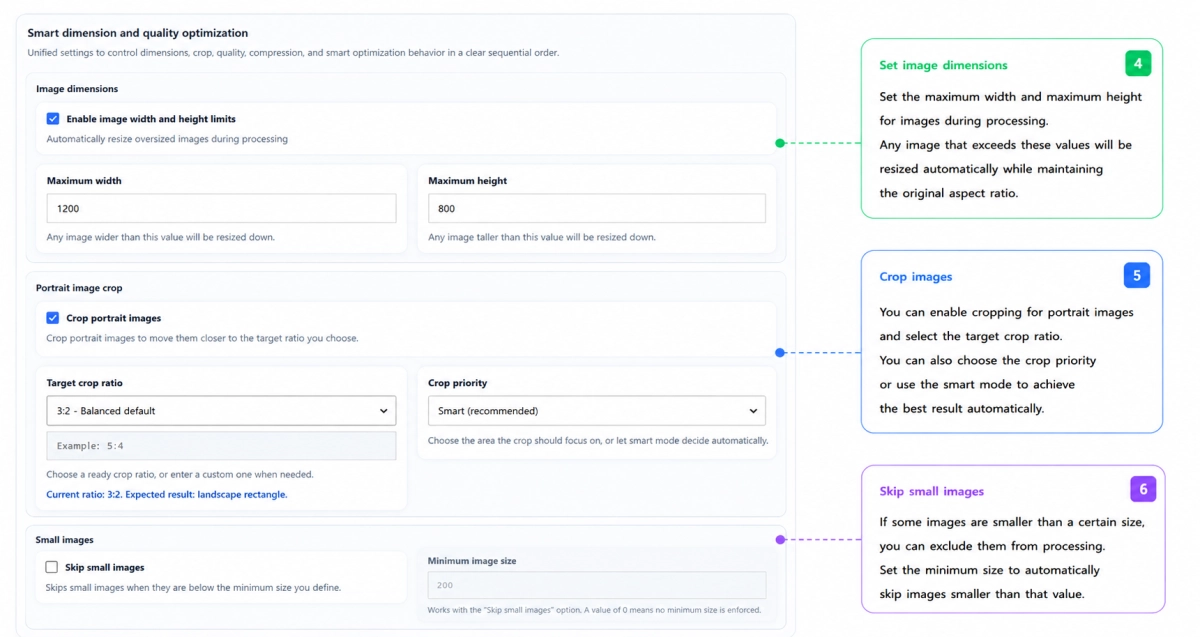
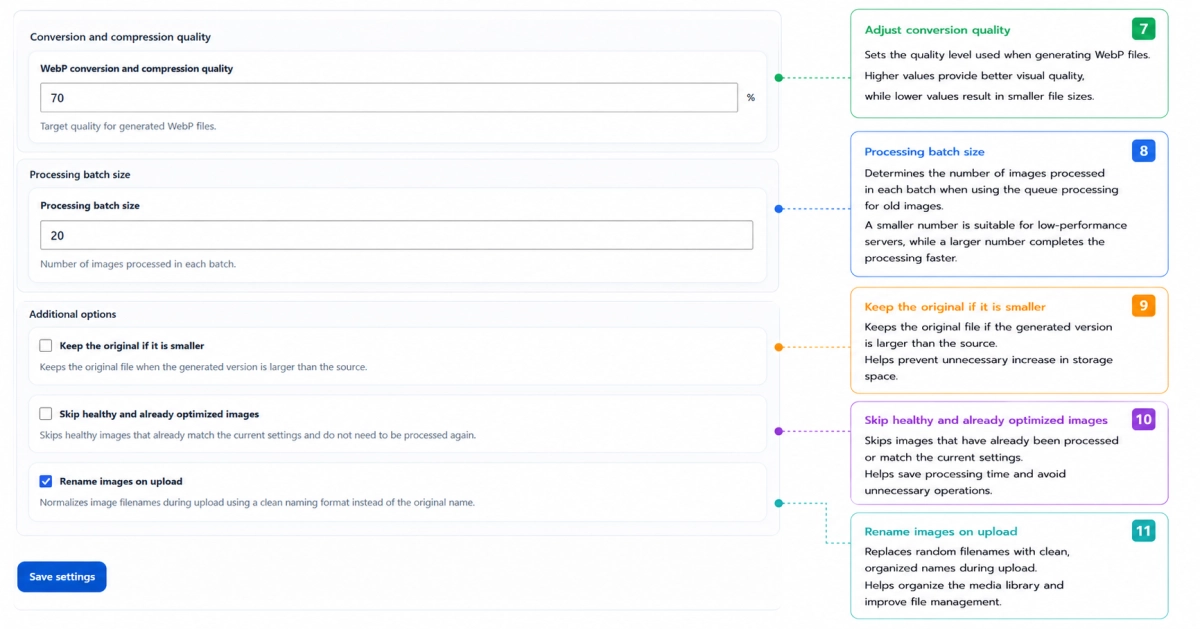
ImgDexter Pro provides flexible settings to control how images and media files are processed.
Image Optimization
✔ Image quality and WebP conversion
✔ Image resizing
✔ Smart cropping
✔ Image renaming
Processing Behavior
✔ Automatic processing
✔ Background processing
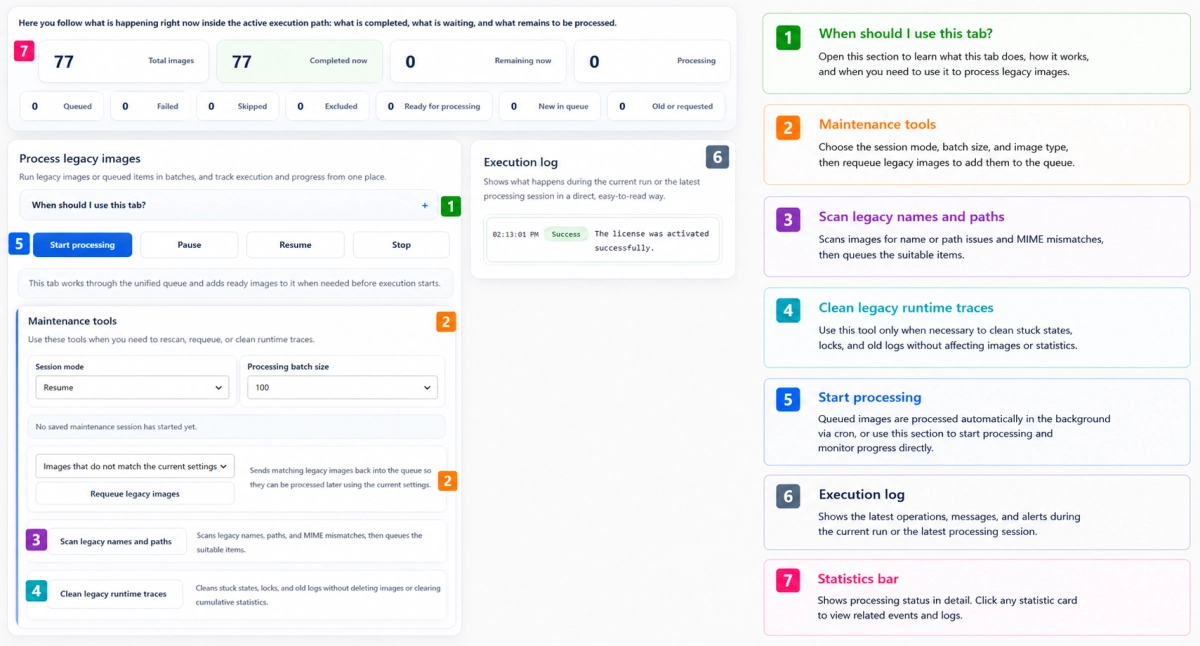
✔ Legacy media processing
✔ Exclusion rules
Customization
Adjust the settings based on your website type, media library size, and performance requirements.
How the Workflow Works
Image Upload
The image is added to the WordPress Media Library.
Processing
The selected optimization rules and settings are applied.
Optimization
WebP generation, resizing, or cropping is performed when applicable.
Review
The result and status of each process are recorded.
Diagnostics
Logs, results, and any cases that need attention can be reviewed clearly.
Legacy Media Processing
ImgDexter Pro is designed to handle large and heavy media libraries in a safer, more organized way.
Instead of running heavy bulk operations all at once, processing is handled through structured batches that help:
✔ Reduce server load
✔ Improve stability during execution
✔ Track progress more clearly
✔ Pause and continue processing when needed
Diagnostics & Media Review
Diagnostics
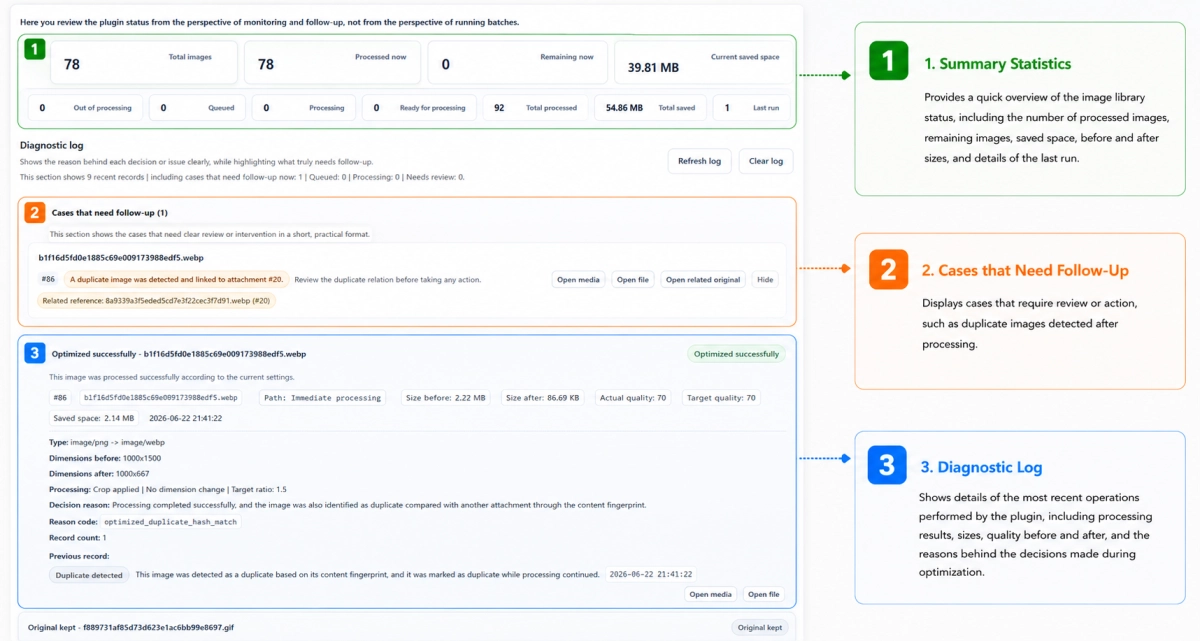
Diagnostics tools provide clearer visibility into every process performed on new or existing images.
✔ Review processed images
✔ Track skipped images
✔ Identify cases that need review
✔ Monitor processing status and progress
✔ Diagnose potential issues
Media Review
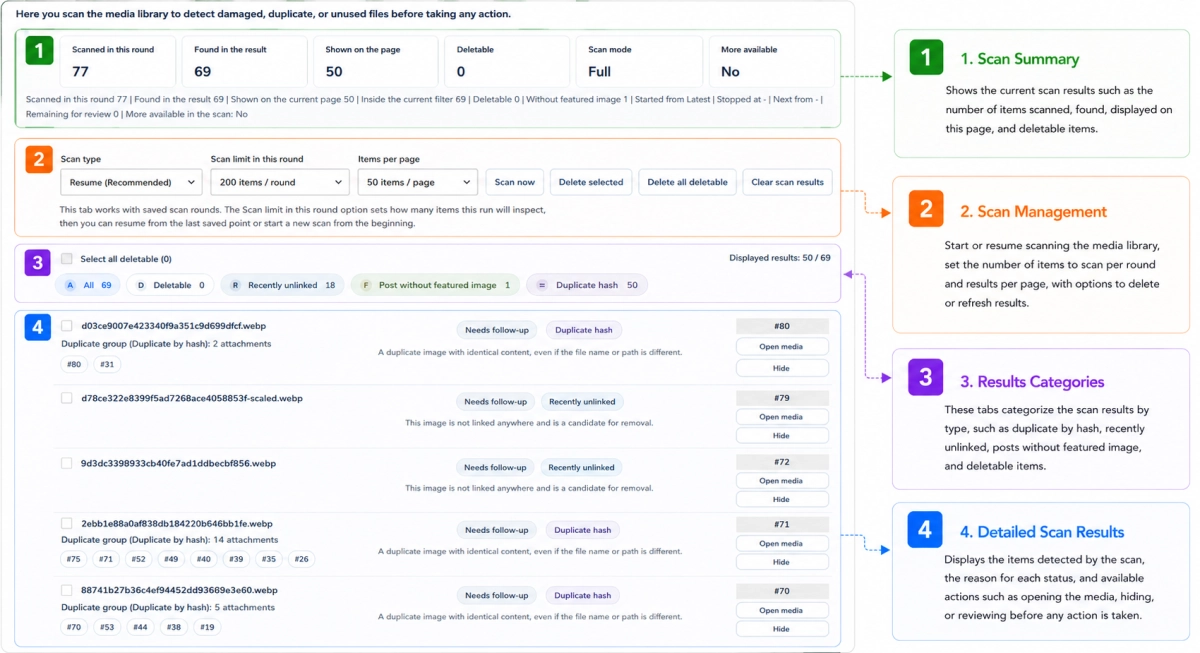
Media Review tools provide a clear overview of your Media Library through an advanced scanning workflow.
✔ Scan and review the Media Library
✔ Detect missing or broken images
✔ Identify images not attached to posts or site content
✔ Identify posts without associated images
✔ Detect duplicate images
Best Practices
✔ Start by optimizing new uploads before processing old media libraries.
✔ Review quality and resizing settings carefully before running large-scale processing.
✔ Process large media libraries in batches instead of running all tasks at once.
✔ Use diagnostics regularly to monitor performance and detect cases that need review.
✔ Review scan results before deleting or cleaning any media files.
Activation & Updates
Product Activation
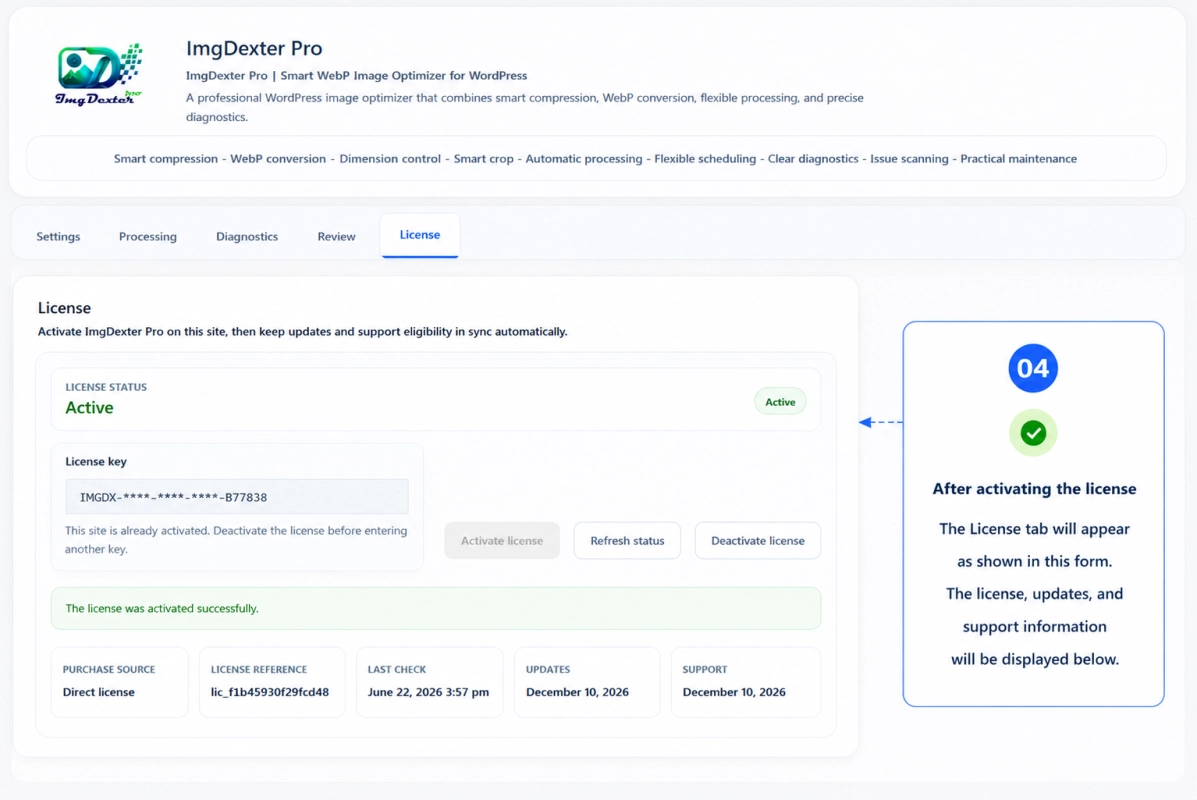
Enter your activation key on the activation page, then save the information.
Product Status
You can review product status and related product details at any time.
Updates
After activation, you can receive updates directly through the Dall Dexter system.
Temporary Connection Issues
If the verification service is temporarily unavailable, the core plugin features will continue to work normally.
Troubleshooting
✔ Activation does not work: check the key and make sure the server can connect properly.
✔ Updates do not appear: review the activation status, then refresh the connection.
✔ WebP files are not generated: make sure WebP support is enabled in the GD Library.
✔ Processing has stopped: review diagnostics logs and check the server status.
✔ Some images were skipped: the image may be excluded or may not meet the current processing rules.
Frequently Asked Questions
Can ImgDexter Pro process old media libraries?
Yes. Existing media libraries can be processed through safe and structured batches.
Does the plugin support Arabic and English?
Yes. The plugin fully supports both Arabic and English interfaces.
Can product usage be moved to another website?
Yes, according to the approved support and usage policy.
What should I do if updates do not appear?
Check the activation status, then refresh the connection.
Will the plugin keep working if the verification service is temporarily unavailable?
Yes. Core features remain available normally.
Changelog
Need Additional Assistance?
If you cannot find the answer you need in this guide, contact support and include your order number, activation details, and a clear description of the issue so the team can assist you properly.